
Live3D AI Face Swap (live3d.io) and LiveFaceSwap AI (livefaceswap.ai) both do face swapping, but they solve different problems. Live3D is built mainly around uploading media and generating a finished result: photos, GIFs, recorded video, and group photos are all natural fits. LiveFaceSwap AI is built around continuous webcam input and real-time AI output, which is more useful for live streaming, video calls, and workflows where the processed video needs to keep flowing into another app.
If you want to change a photo or an already-recorded clip, Live3D is the more direct workflow. If you are actually looking for live face swap, where the image keeps changing as you move in front of a webcam, the difference becomes much clearer.
Live3D AI Face Swap vs LiveFaceSwap AI: the core difference
| What matters | Live3D AI Face Swap | LiveFaceSwap AI |
|---|---|---|
| Core function | Swap faces in photos, GIFs, and recorded video, including group photos | Continuously swap faces in a live webcam feed |
| Main output | A processed image, GIF, or video result | Continuously changing real-time AI video |
| Main input | Photos, GIFs, and recorded video | Live webcam |
| Workflow | Upload media → AI processing → view or download result | Webcam → cloud AI processing → live output |
| Multiple-face group photos | Supported; a common Live3D multiple face swap use case | Not a primary use case |
| Recorded video face swap | Supported through Live3D video face swap | Not a primary use case |
| Real-time webcam face swap in the browser | The AI Face Swap tool is mainly upload-based | Supported |
| OBS / video calls | Processed files need a separate downstream workflow | Desktop can output continuously through LiveFaceSwap Camera |
| Dedicated local AI GPU | The browser tool does not require you to run the main AI model locally | Cloud inference does not require a dedicated local GPU |
One reason these products are easy to confuse is that Live3D also has VTuber, avatar, and real-time motion-capture products. This comparison is specifically about the Live3D.io AI Face Swap tool, not Live3D's broader virtual-streaming software.
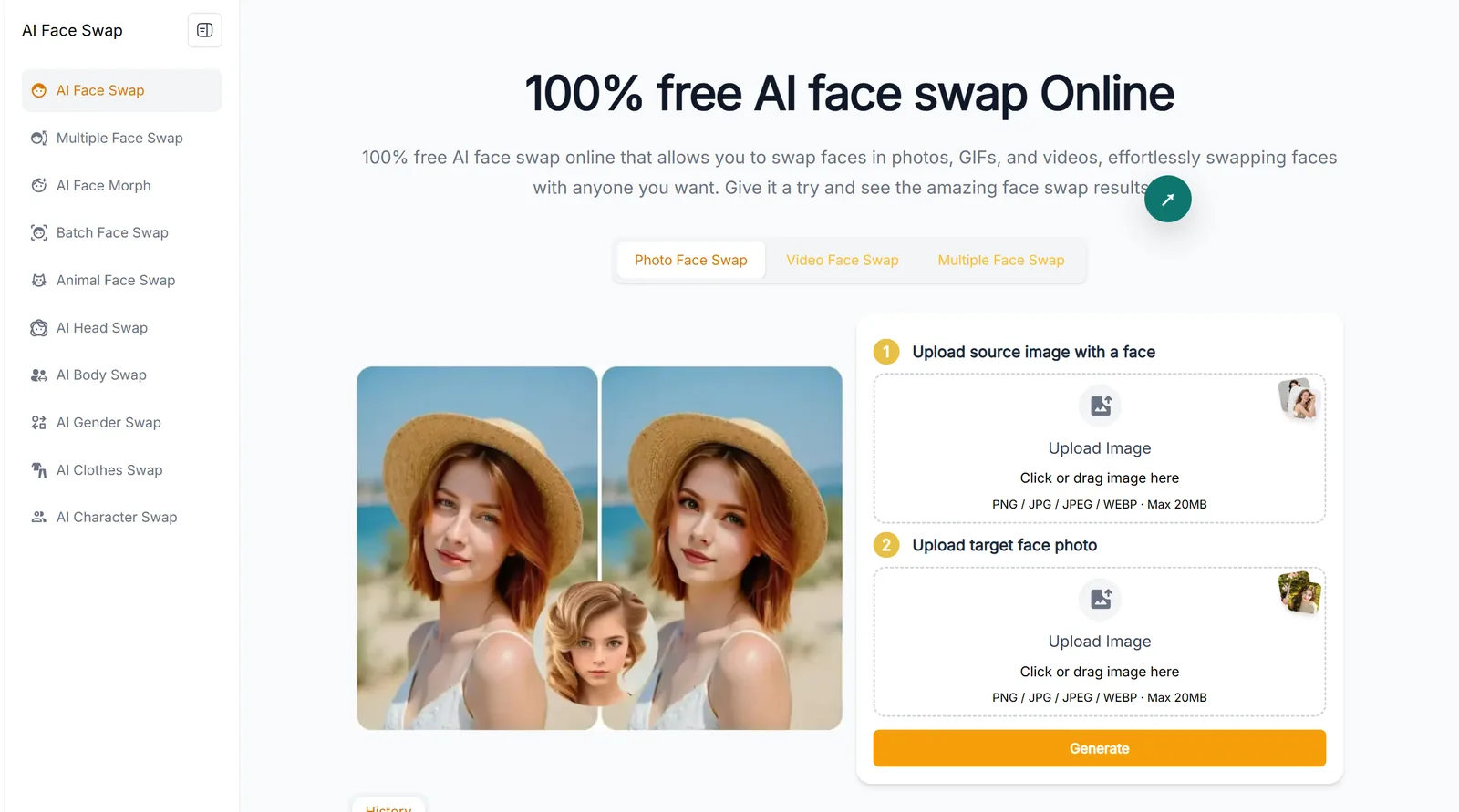
Live3D AI Face Swap is mainly for photos, GIFs, recorded video, and group photos. LiveFaceSwap AI, by contrast, treats the webcam as the primary input. Seeing “video” or “live” in both product ecosystems does not mean the workflows are the same.
Live3D AI Face Swap is better suited to photos, GIFs, and recorded video
If the media already exists on your computer or phone, Live3D has a straightforward workflow: upload the media, choose the face to replace, and generate a result.
Typical use cases include:
- swapping a face in a single photo;
- creating a face-swapped GIF;
- processing an already-recorded video;
- replacing multiple faces in a group photo.
Group photos are one of the more distinctive Live3D use cases. Live3D multiple face swap refers to exactly this kind of task. For birthday photos, friend-group shots, memes, or other media that has already been captured, an upload-based workflow is usually simpler than a real-time webcam tool.
Likewise, Live3D video face swap means starting with an existing video file and processing that upload. It works well for recorded clips and social content, but that is different from a webcam feed that is still happening live.
If your goal is simply “I already have an image, GIF, or video and want a new face-swapped file,” you can use Live3D AI Face Swap. It does not need the continuous input and live-output chain required by a webcam workflow. For the step-by-step workflow, including its free photo allowance and short-video limits, see the Live 3D Face Swap guide.
LiveFaceSwap AI is better suited to real-time webcam face swap
LiveFaceSwap AI does not start with a media file waiting to be processed. It starts with a webcam that is currently running.
The simplest option is to open the LiveFaceSwap AI real-time workspace, allow camera access, choose a reference face and model, and watch the AI output update continuously. When you turn your head, blink, or change expression, the system keeps processing incoming camera frames instead of waiting for you to finish recording a clip first.
The basic flow is:
Webcam → Cloud AI → Live Output
The main AI inference runs in the cloud, so you do not need to buy or configure a dedicated local NVIDIA GPU just to run the face-swap model. The browser is useful for quickly testing the webcam, reference image, and real-time effect, but it currently does not record or export the live stream as a finished video file.
If the processed video needs to go into OBS, Zoom, or another app that accepts a camera input, use LiveFaceSwap Desktop:
Physical camera → LiveFaceSwap Desktop → LiveFaceSwap Camera → OBS / Zoom / another compatible app
LiveFaceSwap Camera is a virtual camera exposed by the system. LiveFaceSwap Desktop keeps generating the AI video, while OBS or a video-call app reads LiveFaceSwap Camera like a normal camera device. There is no need to record a file first and upload it afterward.
For OBS, see the LiveFaceSwap OBS guide. For Zoom, see the Zoom real-time face swap setup guide.
Video Face Swap is not the same as Live Face Swap
This is the most important distinction when comparing Live3D with LiveFaceSwap AI.
Video face swap usually means:
Existing video file → Upload → AI processing → New video
By contrast, live face swap / real-time face swap usually means:
Continuous webcam capture → Continuous AI processing → Continuous output
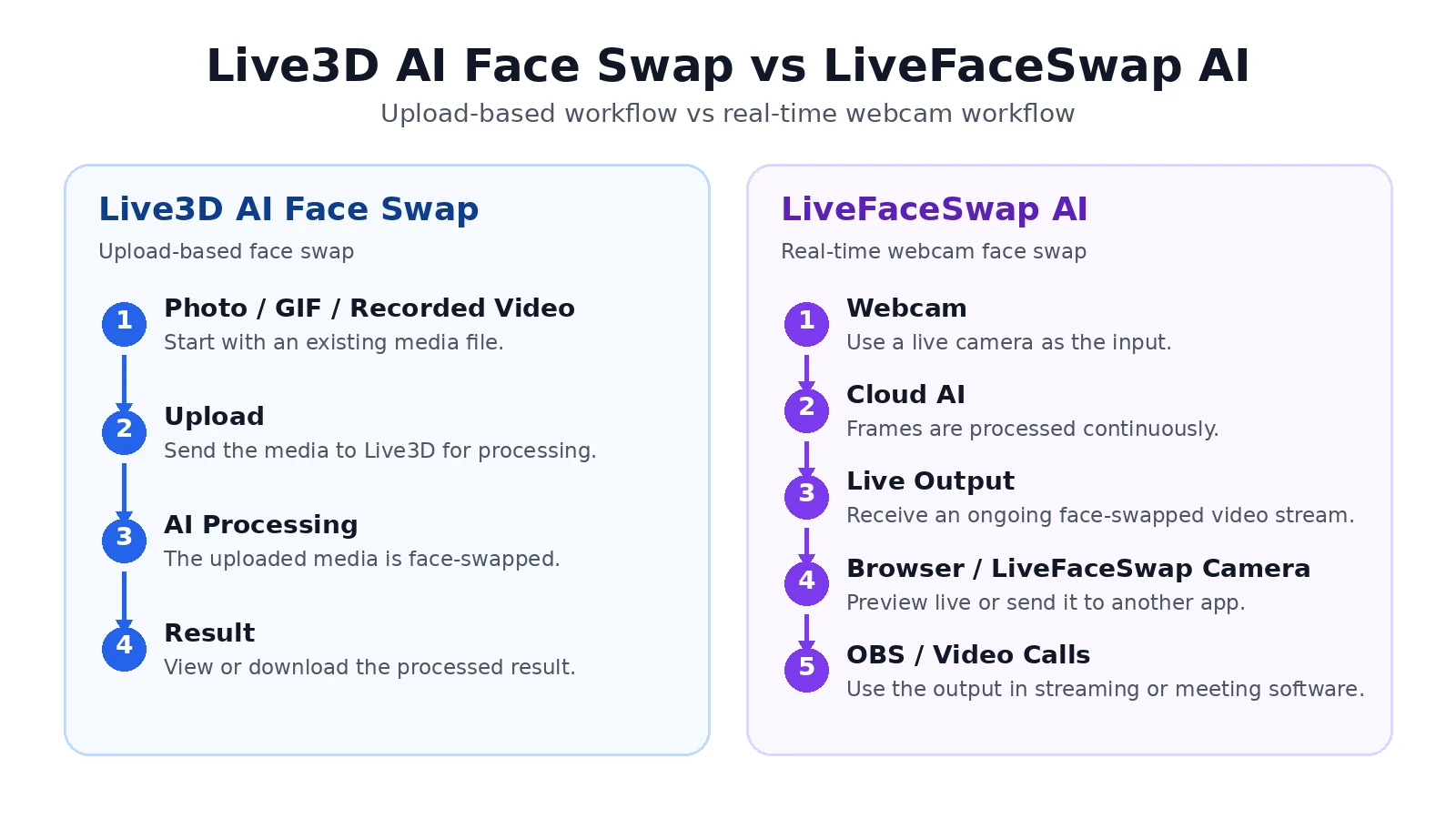
So even if a product supports “AI video face swap,” that does not automatically mean it can keep swapping faces inside a Zoom meeting, an OBS live stream, or a live webcam preview.
Phrases such as Live3D AI Face Swap video and Live3D face swap video can refer to a face swap applied to a video file, but they can also sound like real-time webcam functionality. The useful distinction is still the same: uploaded files versus continuous live input.
A simple rule works well: if you can record the content first and process it afterward, you need video face swap. If the content is happening now and the processed video has to keep flowing outward at the same time, you need real-time face swap.
LiveFaceSwap AI is designed around the second case. For a deeper look at its two real-time workflows, read How to Swap Faces in Real Time: Browser and Desktop Methods.
Choose based on what you actually need to do
The upload-based Live3D AI Face Swap workflow is a better fit if you mainly want to:
- swap a face in a photo;
- edit a group photo;
- make a face-swapped GIF;
- process an already-recorded video;
- download or continue editing a finished result.
LiveFaceSwap AI is a better fit if you mainly want to:
- swap faces directly from a live webcam;
- keep seeing AI output while you move in front of the camera;
- send real-time face-swapped video into OBS;
- use processed video inside Zoom or another video-call app;
- avoid buying and configuring a dedicated local GPU for AI inference;
- test quickly in the browser, then move to Desktop and a virtual camera when needed.
The two workflows are not mutually exclusive. Someone could use Live3D for photos, GIFs, or recorded clips and use LiveFaceSwap AI for streaming or video calls. The deciding factor is not which product name sounds more “live.” It is whether your input is a file that already exists or a webcam that is still running.
If you want to test the second workflow now, try LiveFaceSwap AI in your browser. If you need to route the real-time output into another app, continue to LiveFaceSwap Desktop.