
This guide explains how to use LiveFaceSwap AI for real-time face swapping online, directly in your browser. No download or installation is required. Once you have checked your camera, started the face swap, and confirmed the AI output, you can compare the original camera feed with the transformed result.
For your first session, you can keep the preset effect, AI model, and reference image. Later in the guide, you will also learn how to upload your own reference image, change models, and try other effects.
1. Open the Workspace and Check Your Camera
Open the Browser Workspace
Open the LiveFaceSwap AI online face swap workspace.
For your first session, leave the preset face swap effect, AI model, and reference image unchanged. You do not need to adjust any settings before you begin.
Allow Camera Access
- Select Open camera.
- When your browser asks whether the site can use your camera, select Allow while visiting the site.
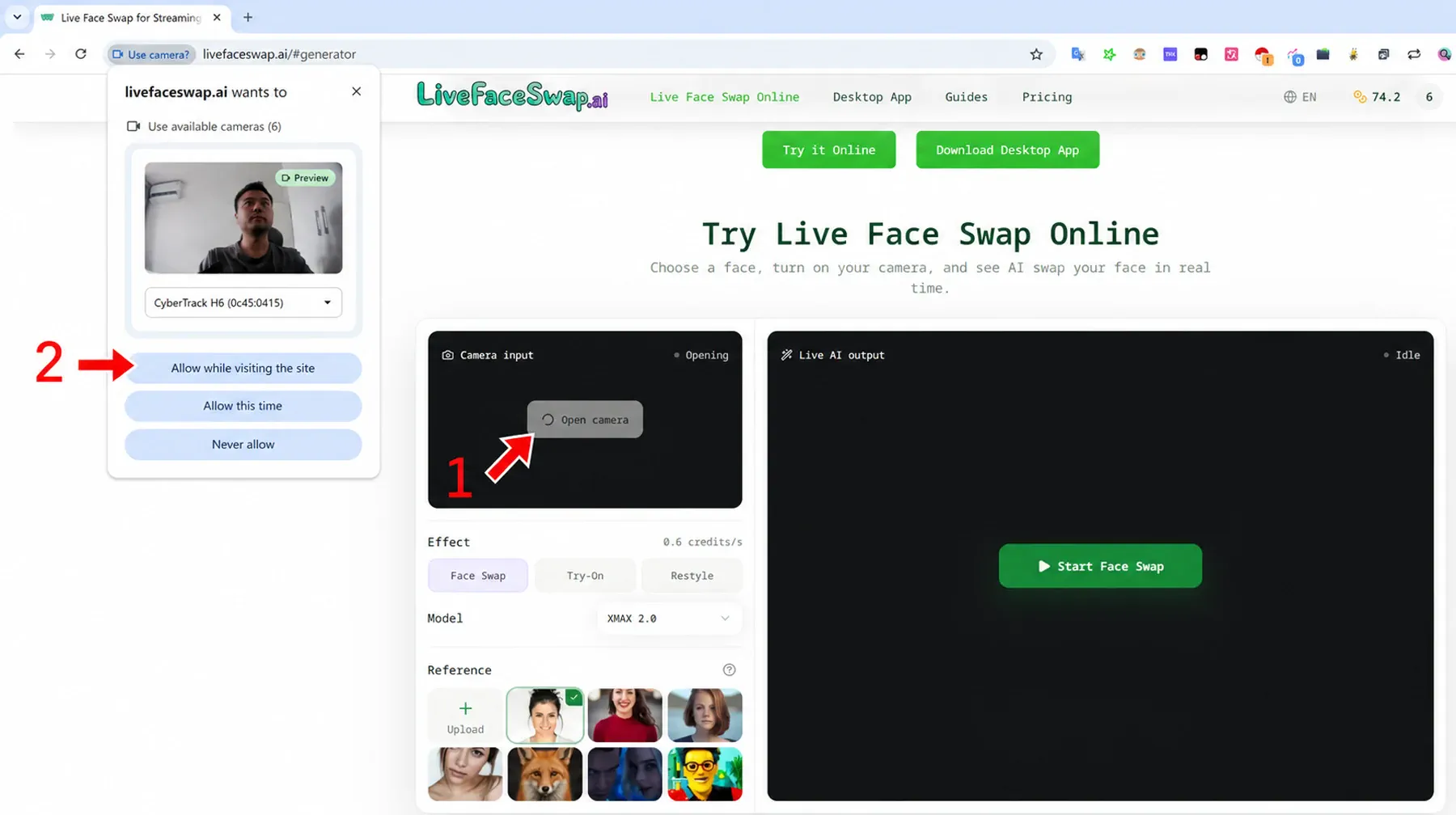
Make sure the Camera input panel shows your live video. Your face should be clearly visible, the lens should be unobstructed, and the scene should not be too dark.
At this point, the AI face swap has not started, so the Live AI output panel will remain unchanged.
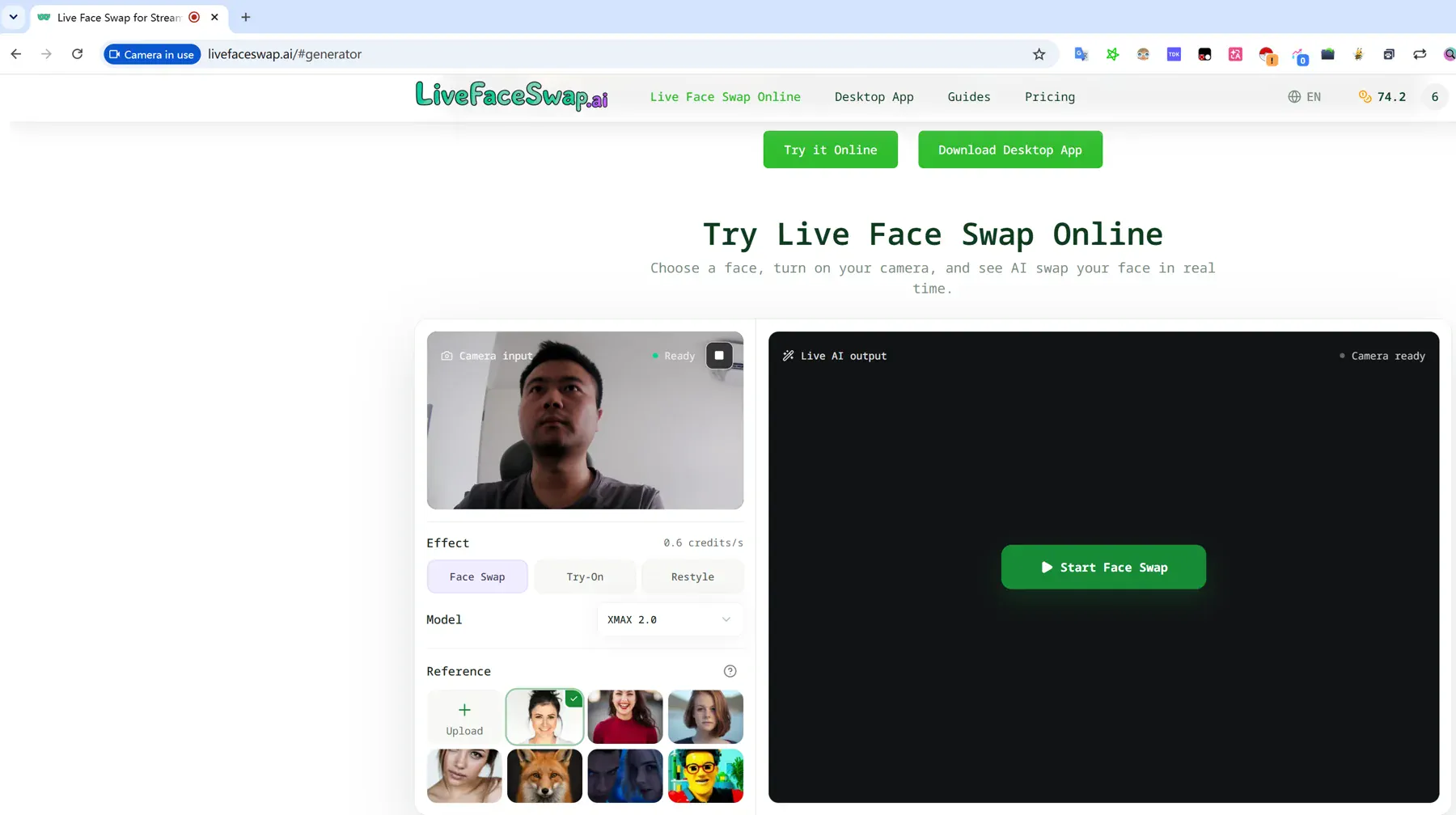
Opening the camera does not start the AI face swap or use credits.
If you have trouble opening the camera, see Why can't my browser open the camera?
2. Start Your First Live Face Swap Online
Sign In to LiveFaceSwap AI
You must sign in before starting a live face swap.
If you are signed out, selecting Start Face Swap will prompt you to create an account or sign in. You can also select Sign Up in the upper-right corner before starting.
New users can try up to 60 seconds for free. The actual preview time depends on the selected model and the credit rate shown on the page.
Select Start Face Swap
After signing in, select Start Face Swap again.
LiveFaceSwap AI checks the current camera state and connects to the real-time AI service. The Live AI output panel displays Loading while the session starts.
Credits are not deducted while the output is loading or a wait is displayed. Per-second billing begins only after the AI output appears.
Wait for Live AI Output
Once any displayed wait has ended and the connection begins, the face-swapped video usually appears in the Live AI output panel within about 10–25 seconds.
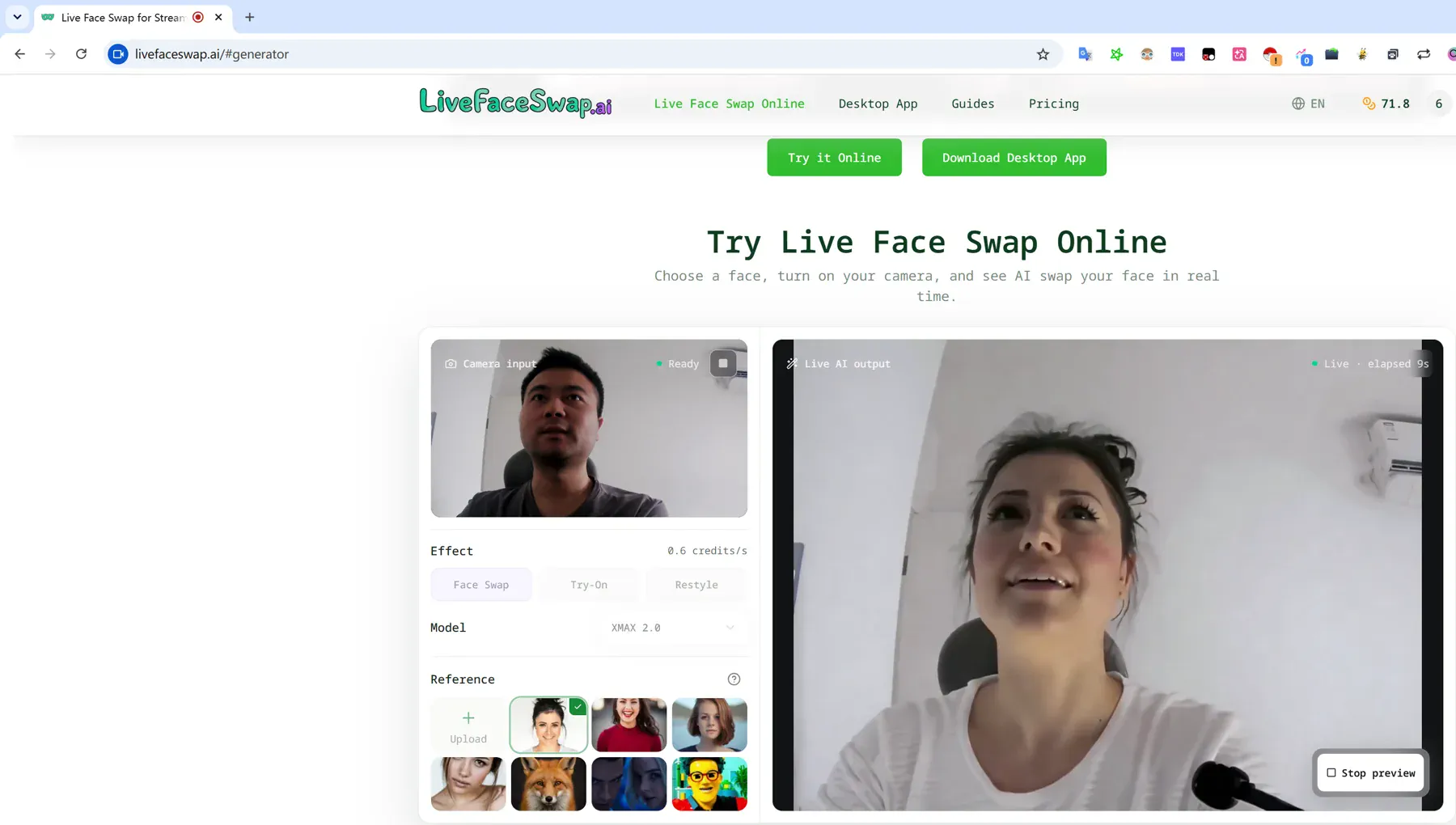
When the video in Live AI output updates continuously as you move on camera, your first online face swap is running successfully.
Credits begin counting only after the AI output appears. Rates vary by model, and the current rate is shown on the page.
If the AI output does not appear within 60 seconds after any displayed wait has ended, see Why can I see my camera but no AI output?
3. Review the Result and Stop the Face Swap
Compare the Camera Input and AI Output
Compare the original camera input on the left with the AI output on the right.
Try:
- turning your head
- waving your hand
- changing your expression
- moving closer to or farther from the camera
Watch how the face-swapped video follows your movement.
Results can vary with camera quality, lighting, framing, movement, and the quality of the reference image. Because the model runs in the cloud, your network connection can also affect startup time, latency, and video smoothness.
During a live face swap, the elapsed time and your remaining credit balance update every few seconds.
Stop the Preview
When you want to end the current face swap, select Stop preview in the lower-right corner.
Stop preview ends the current live session. The session also stops automatically if your credits run out.
Wait for the preview to stop before changing the reference image, model, or effect and selecting Start Face Swap again.
Once the session has stopped, the camera is released automatically.
4. Change the Reference Image, Model, or Effect
After your first preview, you can change the reference image, AI model, or effect.
Upload Your Own Reference Image
In Face Swap, the reference image determines the target face shown in the result.
Select Upload portrait and choose an image from your device, or drag an image into the reference area. Once the new image appears, select Start Face Swap to preview the result.
For the best starting point, choose a reference image with:
- one clearly visible person
- a front-facing or nearly front-facing head position
- both eyes, the mouth, and the full face outline visible
- even lighting with no major obstruction over the face
Try to avoid:
- group photos
- blurry images
- harsh shadows
- heavily covered faces
- images where the face is very small
Use a Preset Reference Image
LiveFaceSwap AI provides preset reference images for the current effect.
If you only want to test the response speed, motion tracking, or differences between models, select another preset instead of preparing a local image.
Change the AI Model
Different models may vary in visual output, processing style, and credit rate.
Before starting another session, select the model you want and check the credits-per-second rate shown on the page.
Switch to Another Effect
Under Effect, you can switch between real-time AI features such as:
- Face Swap
- Try-On
- Restyle
Each effect may require a different type of reference. After switching effects, follow the prompt in the Reference section to select or upload a suitable image.
Use only your own likeness or reference images and other materials you have explicit permission to use. Do not use AI face swaps to impersonate, deceive, defraud, harass, or violate someone else's rights. Clearly disclose AI-generated content when it could otherwise mislead viewers. Review the Privacy Policy before uploading any material.
5. Frequently Asked Questions
Why can't my browser open the camera?
Try these steps in order:
- Close any video meeting, recording, or other app that may be using the camera, including LiveFaceSwap Desktop.
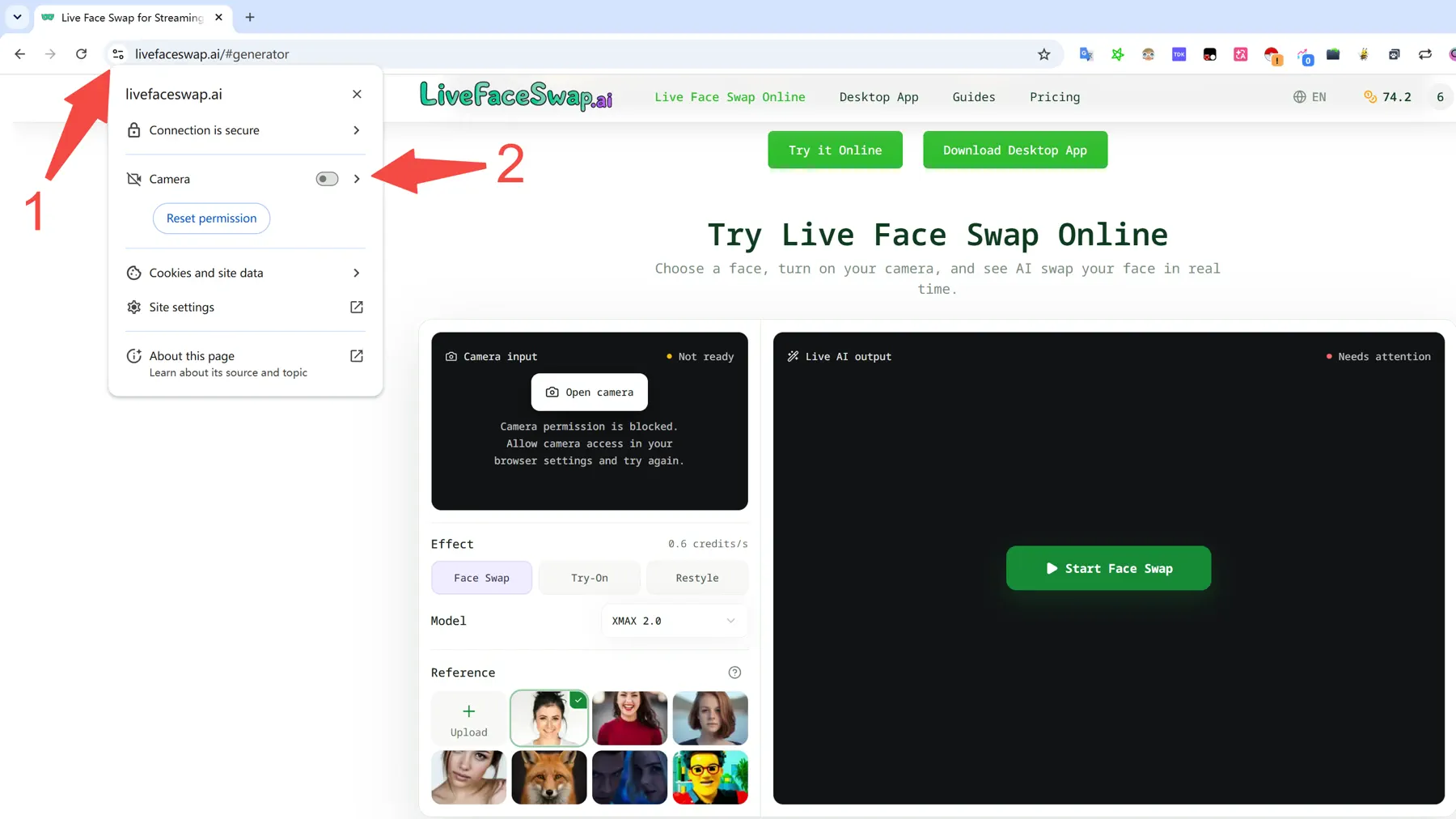
- If you previously denied camera access, select the site controls icon to the left of the browser address bar.
- Find the Camera permission and allow access again.
- Refresh the page, then select Open camera again.
How do I switch cameras?
The online workspace does not currently include a camera selector.
If several cameras are connected to your computer, choose the device you want in your browser's site camera settings, then open the camera again.
Why can I see my camera but no AI output?
Seeing the camera preview only confirms that your local camera input is ready. It does not mean the real-time AI session has connected successfully.
First, make sure that:
- you are signed in
- a reference image is selected
- your credit balance is sufficient
- the output panel displays Loading after you select Start Face Swap
If no AI output appears within 60 seconds after any displayed wait has ended, try the following:
- The session did not connect. Select Stop preview, confirm that the camera, reference image, and model are ready, then start again.
- Your credit balance is too low. If the page shows a credit warning, upgrade your plan or purchase a one-time credit pack before trying again.
- Your network connection is unstable. Check the connection, then start a new live face swap session.
- The issue continues. Email support@livefaceswap.ai with a screenshot of the page, any visible error message, and a short description of what happened.
Do I need to download software for online face swapping?
No.
If you only want to try real-time AI face swapping with your camera, use the browser workspace described in this guide. You do not need to install the desktop app.
If you need to send the processed video to OBS, streaming software, meeting software, or another app that accepts a camera source, use LiveFaceSwap Desktop for Windows instead.
If you are still deciding between the two workflows, see How to Swap Faces in Real Time: Browser or Desktop.
Do I need a GPU for online face swapping?
No dedicated local GPU or high-end graphics card is required.
LiveFaceSwap AI runs the real-time models in the cloud. Your browser primarily handles the camera input, live video display, and session connection.
For the browser experience, camera quality and a stable network connection matter more than local GPU performance. Learn why real-time face swap does not require a dedicated local GPU.
When do credits start counting?
Credits begin counting by the second only after the AI output appears.
Credits are not deducted while you are:
- opening the camera
- viewing the original camera feed
- seeing Loading
- waiting while the page displays a wait state
Credit rates vary by AI model. Check the current rate shown on the page before starting a live face swap.
Can I record, download, or save the face-swapped video?
The browser version does not currently record, download, export, or save face-swapped video.
To record or stream the processed video, use LiveFaceSwap Desktop to send it through the LiveFaceSwap Camera virtual camera, then use OBS for recording or streaming.
Continue reading: