
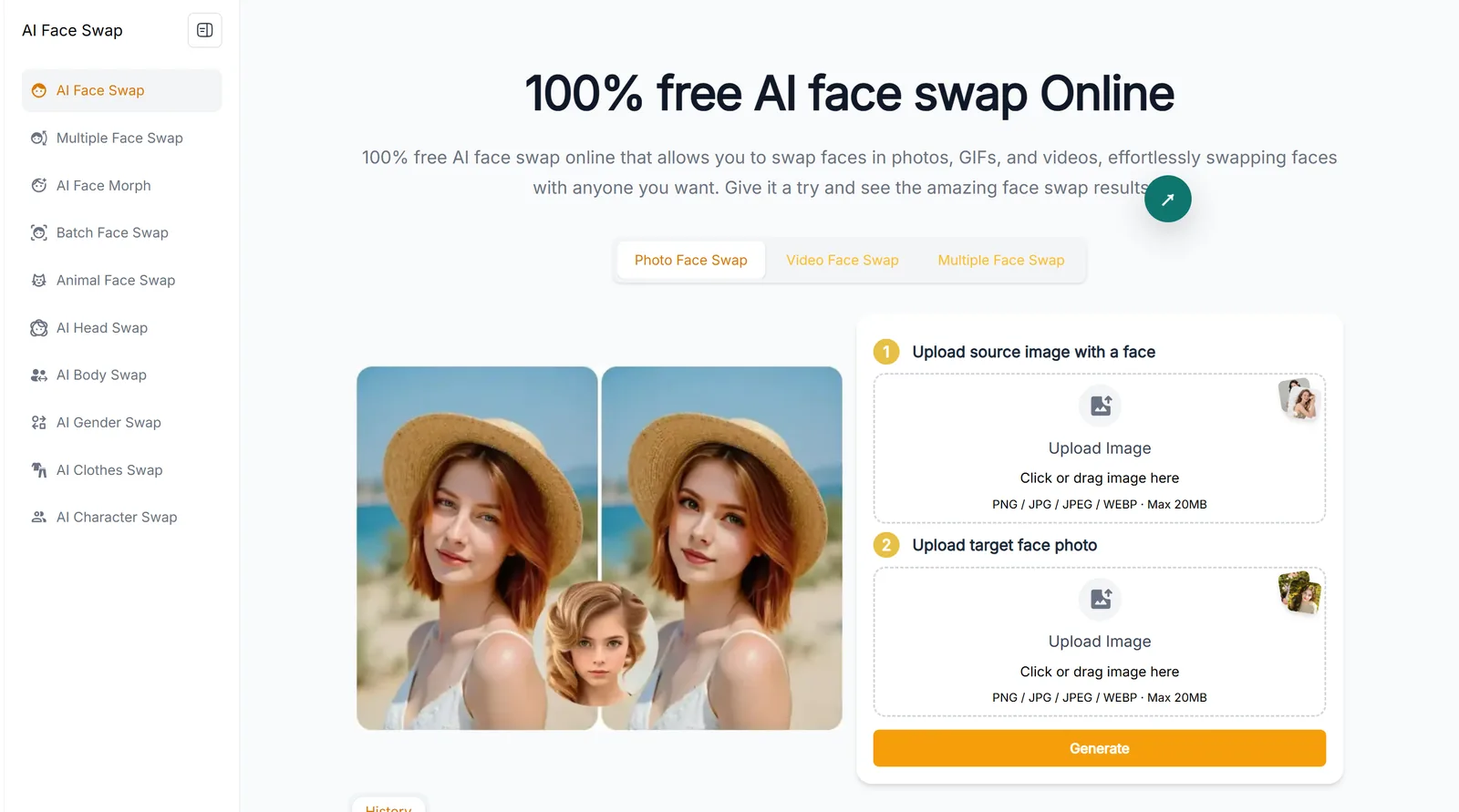
Live3D AI Face Swap (live3d.io) lets you swap faces in photos and videos in your browser. Upload the media you want to edit and a reference portrait, then generate and download the result.
Which Live3D Face Swap Tool Should You Open?
For a single photo, start with Photo Face Swap on the main page linked above. Other tasks have their own entry points:
| What you want to edit | Tool to choose |
|---|---|
| One photo | Photo Face Swap on the main tool page |
| A recorded video clip | Video Face Swap |
| Several faces in one group photo | Multiple Face Swap |
| Several photos using the same reference face | Batch Original Faces in Batch Face Swap |
Single Photo Face Swap: Keep the Two Inputs Straight
Live3D Face Swap uses one image as the scene you want to change and another as the face you want to put into it.
- Upload the original photo in the source-image area. If you want to replace a face in a movie still, this is where the movie still goes.
- Add the reference portrait in the face-photo area. To put yourself into that scene, upload a clear photo of yourself here.
- Click Generate, inspect the result, and download the image.
For photo uploads, Live3D Face Swap accepts PNG, JPG, JPEG and WEBP files up to 20MB each for both inputs. A clear, front-facing portrait without obstructions gives the tool a better reference to work with. Blurred faces, strong side angles or hair covering facial features can make the result less convincing. Check the eyes, mouth and face edges before saving it.
Live3D Video Face Swap: Upload a Recorded Clip
This tool processes pre-recorded video files rather than a live camera feed. To make a swap:
- Upload the video and select the part you want to process. The free version currently supports clips up to 10 seconds, with a draggable clip selector.
- Add the reference face and start generation.
- Review the finished clip and download it.
Live3D Face Swap's dedicated video tool accepts MP4, MOV, M4V and GIF files up to 100MB, including animated memes or loops. The reference face can be a JPG, PNG or WEBP image up to 20MB.
Live3D Multiple Face Swap: Replace Faces in a Group Photo
Upload a group photo and select the detected faces you want to change. To give each person a different face, upload a separate reference portrait for each one and assign it to the corresponding face in the group photo.
For better results, Live3D Face Swap recommends keeping group shots to five faces or fewer; that is a quality recommendation, not a stated hard cap.
Batch Original Faces: Use One Face Across Several Photos
To put the same face into several photos, open Live3D Face Swap's batch tool and choose Batch Original Faces. Upload the original photos and one shared reference face. For example, three single-person photos and a portrait of you let you put your face into all three original photos.
The current upload form accepts up to 10 source images, each no larger than 20MB. Note that the reference face is limited to 2MB in batch mode, compared with 20MB in the single-photo and video tools.
Is Live 3D Face Swap Free?
Live3D Face Swap lists photo swaps as free and unlimited, with no sign-up required. For a single image, you can start directly in Photo Face Swap mode.
The video tool displays an allowance of 3 free swaps every 12 hours, resetting on UTC time. Free clips are limited to 10 seconds. These conditions apply to that video tool; unlimited photo swaps do not mean unlimited video generation.
Does Live3D Face Swap Work Live on a Webcam?
Live3D AI Face Swap processes uploaded photos and video files, rather than swapping your face continuously on a webcam. Live3D also has VTuber avatar and face-tracking products; those are separate from the upload tools discussed here.
For a face swap that follows you while you talk, turn or stream, you can use LiveFaceSwap AI. The Live3D vs. LiveFaceSwap AI comparison explains the difference between the two workflows.