
LiveFaceSwap AI added Windows 10 support to its Desktop app in version 0.2.18, released on October 31, 2026. A PC running 64-bit Windows 10 21H2 (build 19044) or later meets the app's Windows 10 requirement. You can use its live AI face swap and send the processed video to OBS, Zoom, and other apps that accept a camera input. The change is recorded in the changelog.
Before this release, Windows 10 users could preview a live face swap in the browser, while the Desktop virtual camera workflow was offered on Windows 11. The update brings that Desktop workflow to eligible Windows 10 PCs: view the AI output in the app, then send it to a streaming or calling app when you need to. The Windows 11 workflow continues to work as before.
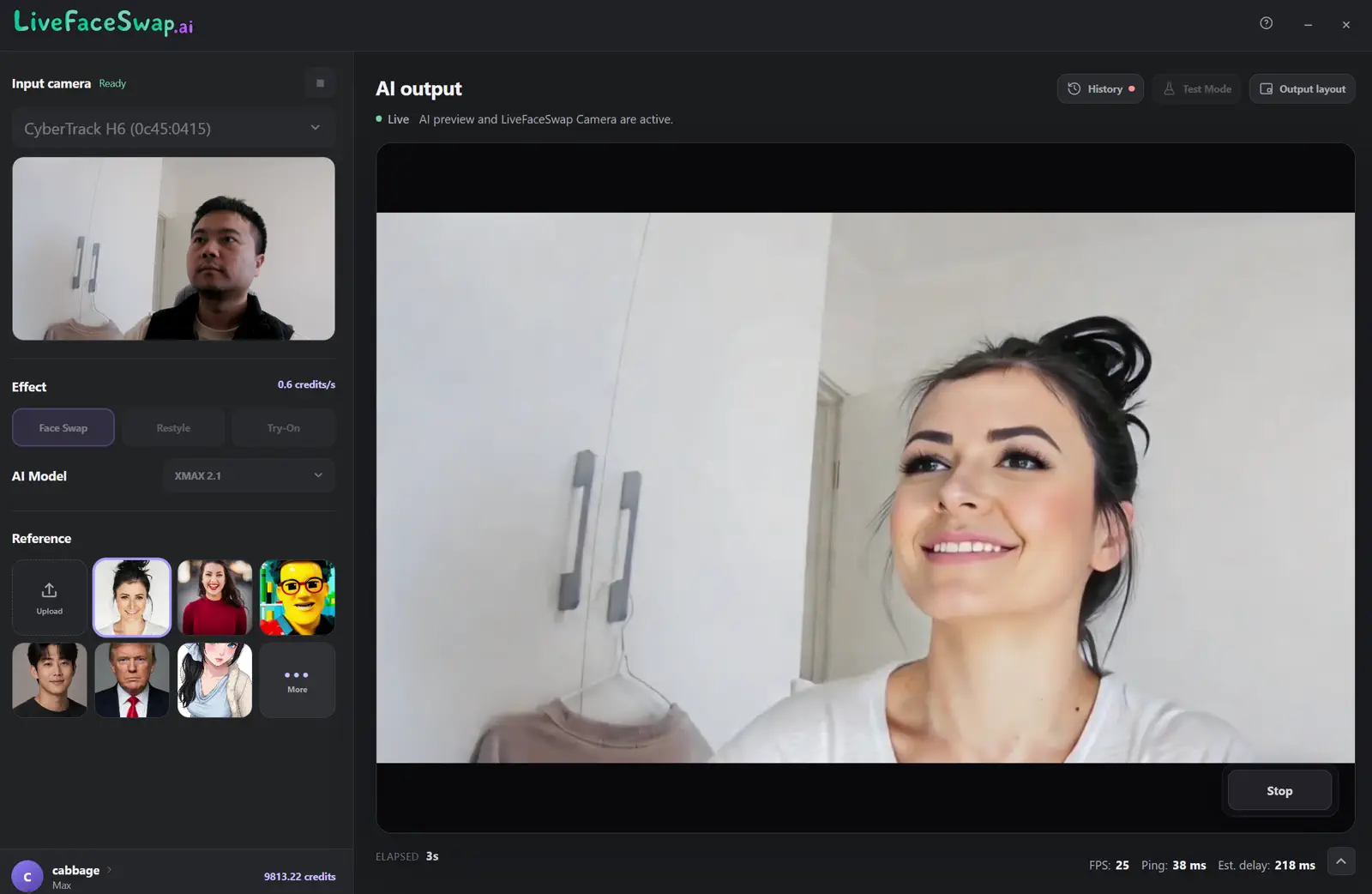
Which Windows 10 PCs can use the app?
| Check | Requirement |
|---|---|
| Windows version | Windows 10 21H2 (build 19044) or later; Windows 11 is also supported |
| System type | x64 (64-bit); the current Windows installer is not for 32-bit Windows |
| Desktop version | 0.2.18 or later for Windows 10 |
| What you need | A working camera and stable internet connection; no dedicated GPU required |
To check your PC, open Settings → System → About. Look under Windows specifications for the version and Device specifications for System type. If it says 32-bit operating system, the current x64 installer does not apply.
The main AI processing runs in the cloud, so you do not need to install a local model or have a dedicated graphics card. Your webcam still captures the input, and the network still carries the video. “No dedicated GPU” therefore does not promise the same frame rate on every older PC or connection. First confirm that both the input camera and AI output keep updating in Desktop, then judge the result in the calling or streaming app you intend to use. The Windows 10 and 11 setup guide walks through that first session.
How do you download or update Desktop for Windows?
Get the current Windows installer from the official LiveFaceSwap Desktop download page. If you already have an older version, open App & updates from the app's account menu to check for an update.
Downloading and installing Desktop is free. A live AI session uses credits at the rate shown for the selected model, starting when the processed AI output appears; connection wait time is not billed as visible output time. Desktop and the web app share the same account balance. Check pricing and credit rates and the rate shown in the app before starting a session.
What can you do on Windows 10?
Choose how to use it based on whether you want to preview the effect, send it to another app, or save a video:
| Your goal | Use |
|---|---|
| Preview the effect first | Try the web app; no Desktop installation needed |
| Use it in a Zoom call | Install Desktop and select LiveFaceSwap Camera in Zoom |
| Build a live stream in OBS | Add LiveFaceSwap Camera as a video source, then manage scenes and audio in OBS |
| Export a full MP4 or a trimmed clip | Desktop 0.2.19 or later can export the whole recording directly; trim only if you want a shorter clip. Use OBS when you need audio or multiple sources |
Desktop installs LiveFaceSwap Camera for you; there is no separate virtual camera plugin to add. Zoom and other apps that accept a camera input can select it directly. OBS is useful when you want captions, several video sources, or control over the complete scene. LiveFaceSwap Camera carries video only, so configure your microphone in the receiving app. The OBS guide and virtual camera and audio guide cover those connections in detail.
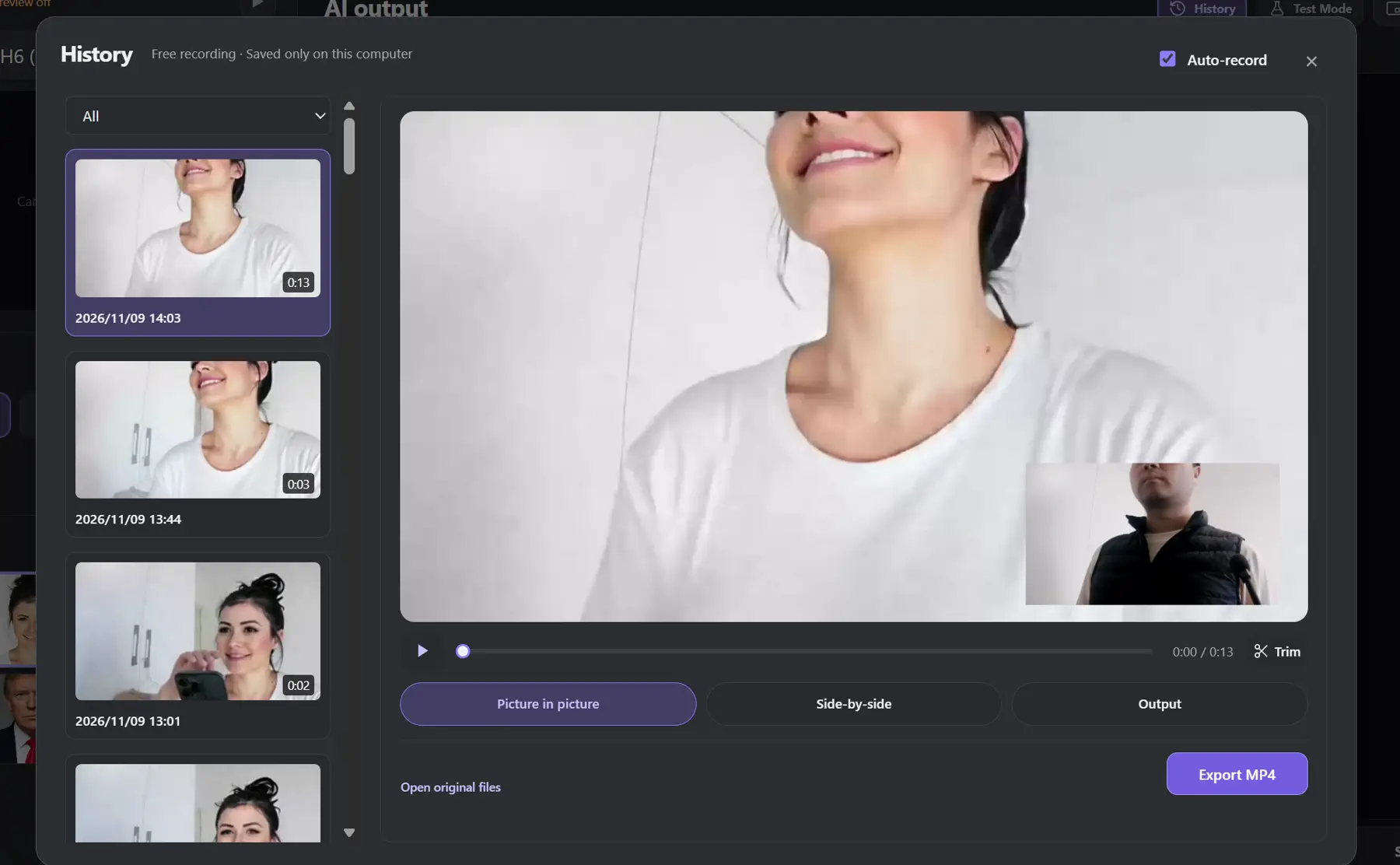
Desktop version 0.2.19 added local recording, replay, and MP4 export, so you do not need OBS just to save the video. Check that Auto-record is enabled before the session. Built-in recordings contain no microphone audio and currently have a default 10-minute limit per recording. The recording and preview guide covers the controls and export options. If you still use 0.2.18, update to 0.2.19 or later for built-in recording, or use OBS to save the video.
How can you check the camera and AI output?
Start with Test Mode to check the camera connection without spending credits. This confirms camera input; it is not a free AI face swap session. In a live AI session, check that the processed picture follows your movements in Desktop. If you plan to use OBS or Zoom, also check that the receiving app lists LiveFaceSwap Camera and displays the processed picture. The setup guide and integration guides have the detailed steps if one of those checks fails.
If the physical camera looks smooth but the AI output or receiving app lags, inspect the network and the rest of the video path. The real-time face swap latency guide explains the available statistics and where delay can build up. The OS version and lack of a dedicated GPU alone cannot predict the frame rate you will see on your own connection.
Need the app? Download the current Windows installer, or preview a face swap in your browser first. If Desktop is already installed, confirm that the camera, AI output, and receiving app all show the expected video before using it in a call or stream.