
When you move in front of your camera, the AI output follows a moment later. That gap is real-time face swap latency. The delay you notice includes every step from camera capture to the image on your screen. A fast model or a low ping helps, but neither number tells you how long that whole trip takes.
Decart's real-time SDK calls this glass-to-glass latency, or G2G: the time from capturing an input frame to playing its corresponding AI output frame. Its browser SDK can attach a capture timestamp to a frame, carry that timing through inference, and match it to output playback. The SDK reports time to first frame (ttffMs) separately from latency during an active session (g2gMs). See Decart's connection-quality documentation for the measurement details.
What does glass-to-glass latency measure?
Several performance numbers describe different parts of the experience:
| Metric | What it tells you |
|---|---|
| Network round-trip time (RTT) | How long a network round trip takes |
| AI inference time | How long the model takes to process an input |
| Frames per second (FPS) | How often new frames are produced or displayed |
| Jitter | How much timing varies from one moment to another |
| G2G latency | How long a captured camera frame takes to appear as AI output |
G2G is the closest of these measures to the delay you see. A 30 ms network RTT does not mean the AI result appears 30 ms after you move. The camera, video encoding, network transfer, server processing, decoding, and playback all take time. A model's single-frame inference figure leaves out those steps too.
Where does the delay come from?
A cloud-based real-time face swap follows a path like this:
Camera → Capture and encode → Upload → Cloud AI → Encode and download → Decode and display
If you use the desktop app's virtual camera in OBS, Zoom, or another program, the output passes through that app before you see it. Each stage can add delay; the total is what you notice when you move or speak.
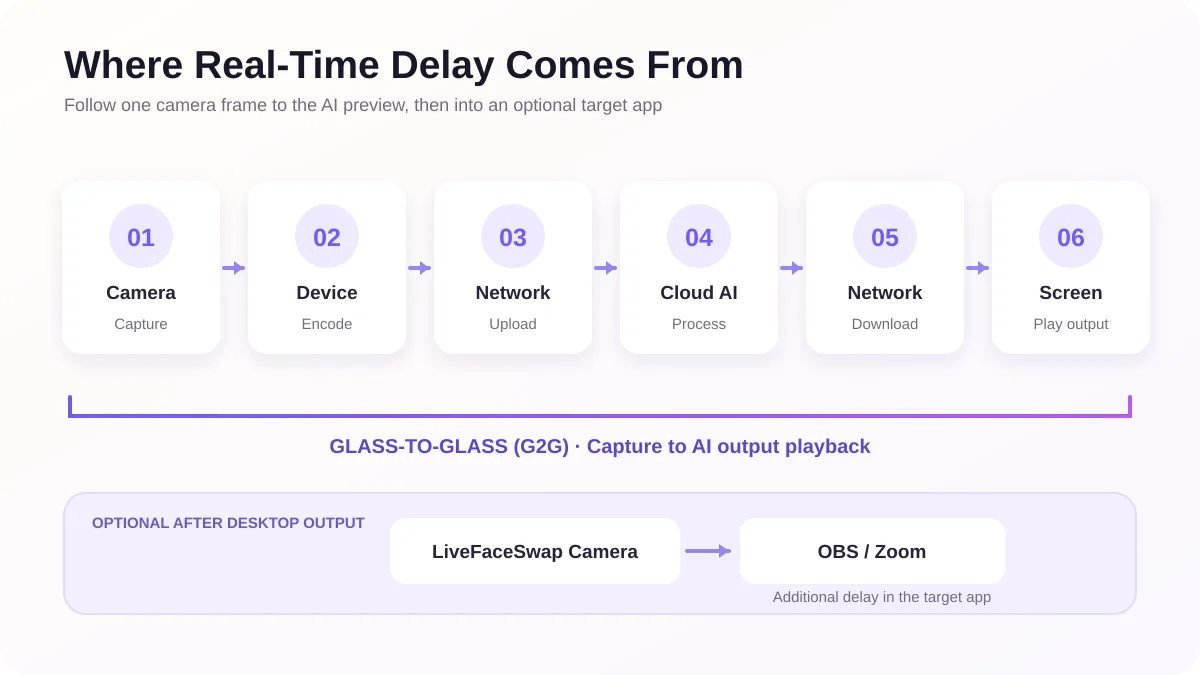
Camera capture and video encoding
A camera supplies frames at a particular rate. At 30 FPS, a new frame arrives about every 33 ms; at 24 FPS, about every 42 ms. Those intervals are not the system's total latency. They show that the camera itself works in frames rather than providing an instantaneous, continuous image. Exposure, camera drivers, and any capture queue can add further waiting.
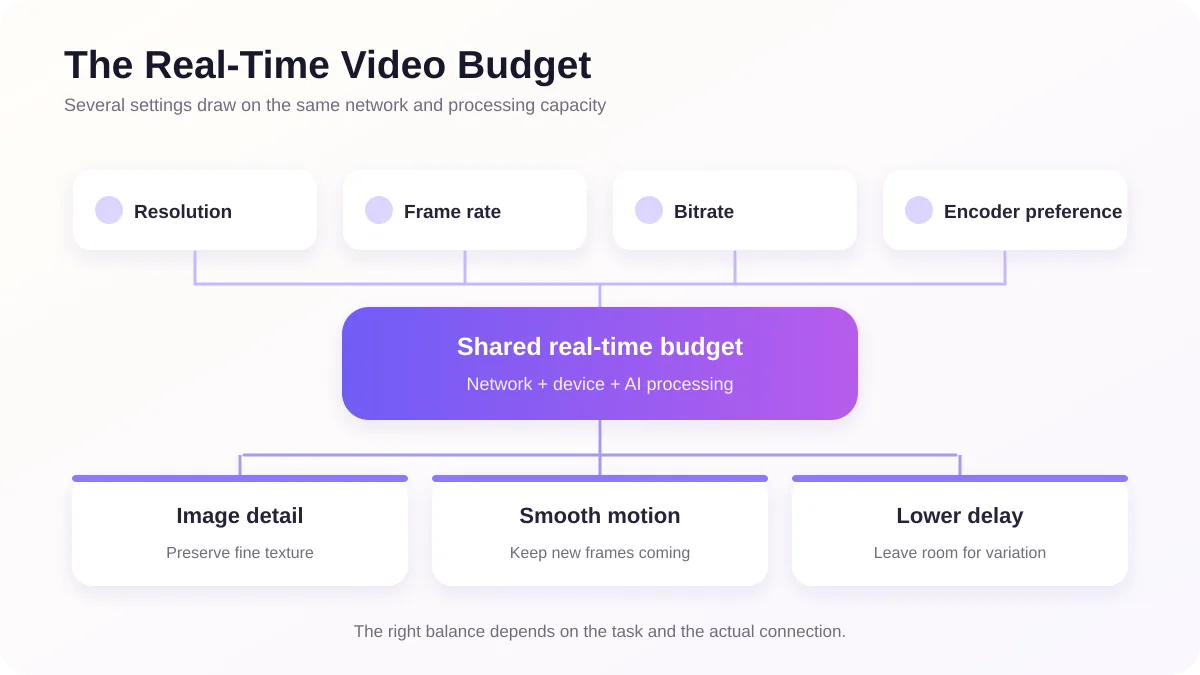
Before a cloud service can receive the video, the device compresses it. Resolution, frame rate, bitrate, and the encoder's priorities affect both the work required and the size of the stream. Higher resolution means more pixels per frame. Higher FPS means more frames to encode and send. A higher bitrate can preserve detail, but it also needs a steadier upload connection.
The upload, cloud processing, and return trip
The camera stream has to reach the AI service. Upload capacity matters, but so do network RTT, jitter, packet loss, Wi-Fi retransmissions, and congestion. A speed test showing 100 Mbps does not guarantee that small pieces of live video arrive at regular intervals.
Once the server receives a frame, it may need to queue and prepare it before inference. It then generates the output and sends video back. This is why a good network RTT can coexist with a noticeably delayed AI preview. Decart's connection-quality reporting considers factors such as packet loss, available upstream bandwidth, FPS, and latency rather than treating bandwidth as the whole story.
The return trip matters as well. Congestion or packet loss on the way back can interrupt playback. The receiver may hold a little video in a buffer to smooth out irregular arrivals, which makes motion steadier at the cost of more delay.
Decoding, display, and the virtual camera
After the output reaches your device, it still has to be decoded and displayed by the browser or desktop app. A larger playback buffer can hide brief network variation, but it also means you see an older frame. Reducing the buffer may make the output more responsive while exposing more stutter.
For a desktop workflow, LiveFaceSwap Camera adds a handoff to the program using it. OBS or a video-call app can then resize, buffer, composite, or encode the video again. The AI preview in LiveFaceSwap and the picture in OBS or Zoom therefore need not have the same delay. The SDK's G2G measurement ends at AI output playback; any delay added by OBS or Zoom comes afterward. If the preview follows you closely but OBS does not, investigate the stages after the virtual camera. The virtual camera guide shows where that handoff sits in the workflow.
How do small delays add up?
The following is an illustrative budget, not a LiveFaceSwap measurement or performance promise. The last row shows additional delay if the result is viewed through another app:
| Stage | Example time |
|---|---|
| Camera capture | 20–40 ms |
| Encode | 10–25 ms |
| Upload and transport | 20–70 ms |
| Server and AI processing | 120–250+ ms |
| Download and transport | 20–70 ms |
| Decode and display | 15–40 ms |
| Virtual camera and target app | 10–80+ ms |
One possible set of values is 30 + 15 + 40 + 200 + 40 + 25 + 50 = 400 ms to the picture in a target app such as OBS. None of those stages has to look unusually slow on its own for the final picture to trail your movement by roughly four tenths of a second. Without the virtual-camera row, the example describes the path to the AI preview.
Different frames can be in different stages at the same time. That helps the system keep producing video, while each frame still needs to make its own journey from capture to display. G2G describes that journey; a benchmark for one stage cannot tell you the total delay.
Can video look smooth and still be late?
Yes. FPS describes how frequently new pictures appear. G2G describes how old a picture is when you see it. These are separate properties:
- 30 FPS with 500 ms G2G: motion may look smooth, but it follows your actions by half a second.
- 15 FPS with 150 ms G2G: the picture responds sooner, but movement looks less fluid.
Likewise, 30 FPS does not imply 33 ms end-to-end latency. A camera can be capturing one frame while another is being uploaded and an earlier one is being processed. To judge a live result, consider delay, FPS, timing stability, and dropped frames together.
Why can a sharper picture feel slower?
Sharper output, smooth movement, and low delay compete for finite processing and network capacity.
More pixels can mean more work for capture, encoding, transfer, decoding, and display. If the AI processes a larger input or output, its workload may change as well. Preserving fine detail at a higher resolution generally calls for more bitrate. On a crowded upload connection, sending more data can build a queue; a frame that waits in that queue appears later even if the model itself has not slowed down.
An encoder can also favor different kinds of content. The XMAX SDK used by LiveFaceSwap exposes a contentHint choice: motion favors moving video, detail favors fine image detail, and text favors readable text. It also exposes stream controls for resolution, FPS, and maximum bitrate. These settings illustrate that “better quality” is not a single switch. LiveFaceSwap does not currently offer those content-hint modes as a user-facing control.
How fast does your internet need to be?
There is no universal minimum upload speed for real-time face swap. The video settings, model, network route, and other traffic on your connection all matter. An SDK's video bitrate cap is not the same thing as the upload speed a household needs: transport overhead, variation, packet recovery, and concurrent traffic require headroom.
As a rough illustration, the XMAX SDK's default maximum video encoding bitrate is 1,200 Kbps, or about 1.2 Mbps. Its actual rate can vary. For a stream with a similar bitrate cap, the following figures are useful planning examples, not LiveFaceSwap requirements or measured results:
| Stable upload capacity | What to expect |
|---|---|
| Around 3 Mbps | It may work, but there is little room for variation or other traffic |
| 5 Mbps or more | More comfortable headroom for a roughly 1.2 Mbps video stream |
| 10 Mbps or more | More room if you are also streaming, calling, or uploading elsewhere |
Stability matters as much as a headline speed. A steady 5 Mbps upload can work better for live video than a Wi-Fi connection that briefly reaches 100 Mbps but has frequent packet loss or large latency spikes. If OBS is also streaming to a platform, add its upload bitrate to the total. If a large upload fills your router's queue, your ping may climb sharply while the upload runs; this is often called bufferbloat.
What should you check when the result feels slow?
Start by locating where the extra delay appears.
If the LiveFaceSwap AI preview is already behind
The likely causes are somewhere between camera capture and the displayed AI result. Check whether a large upload or VPN is running, whether Wi-Fi is stable, and whether the connection shows high RTT, jitter, or packet loss. A device struggling to encode or decode video can matter too. If local conditions look sound, the service or model may be taking longer to process frames.
If the preview looks responsive but OBS or Zoom is behind
Look at the virtual-camera handoff and the receiving app. OBS filters, output settings, resolution changes, rendering load, and additional buffering can add delay after LiveFaceSwap has produced its preview. Test the preview and the target app separately so you can tell which part of the path needs attention.
If quality changes or playback stutters
Give the connection room to handle short fluctuations. Avoid saturating the upload with other transfers. If a setting available in your setup lets you lower resolution or bitrate, a slightly lighter stream can be more responsive and more stable than one that continually fills the connection. For live conversation or streaming, continuous movement often matters more than a small gain in still-frame detail.
The useful question is not just “What is my ping?” It is “How long does a camera frame take to become the picture I actually see, and where does it wait?” That question separates a slow AI preview from delay added later by a virtual camera, OBS, or a video-call app.
For the processing steps behind each frame, see How Does Real-Time Face Swap Work?. For the different latency trade-offs of cloud and local setups, see Cloud vs. Local Real-Time Face Swap.