
LiveFaceSwap Desktop provides a virtual camera called LiveFaceSwap Camera.
The key point is simple:
LiveFaceSwap Camera is the name of the virtual camera created by LiveFaceSwap.
You do not select it inside the main LiveFaceSwap window, and it is not a separate app that you open. After installing Desktop, you normally select LiveFaceSwap Camera inside OBS, Zoom, Teams, Discord, or another app that lets you choose a camera device.
The normal video flow is:
Physical Camera → LiveFaceSwap Desktop → AI Output → LiveFaceSwap Camera → OBS / Zoom / Other Apps
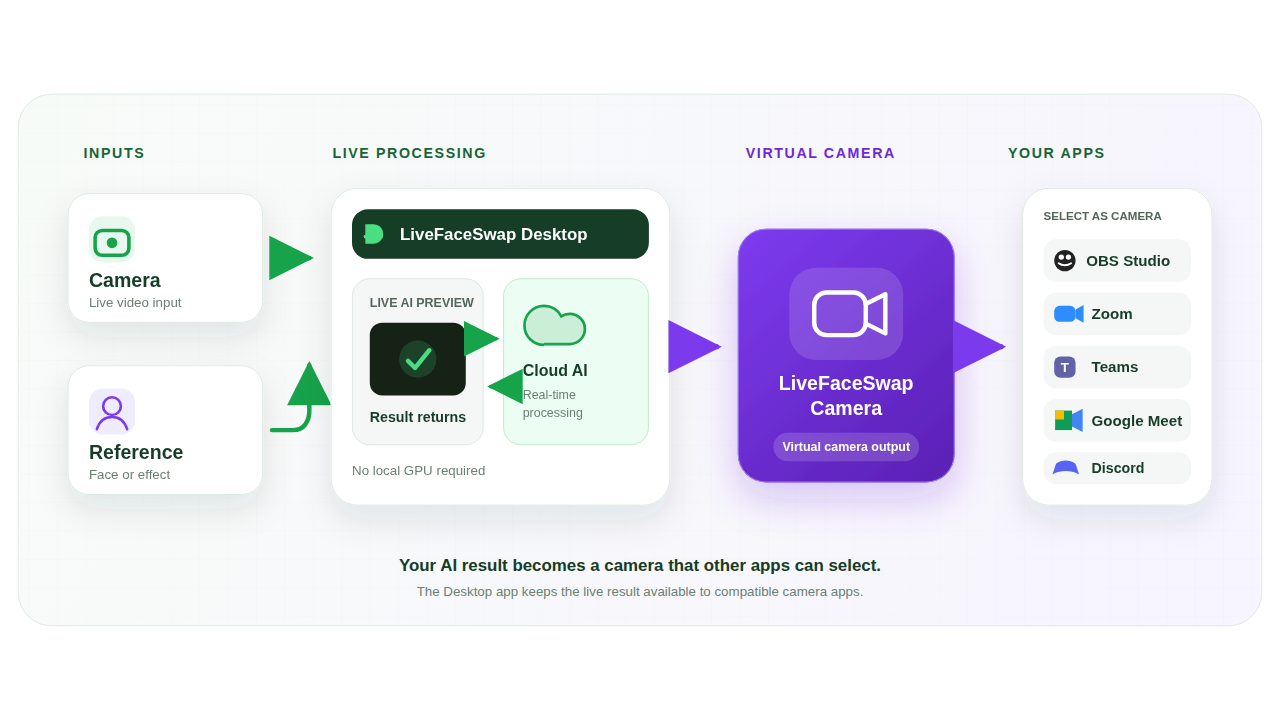
This guide answers four questions: what a virtual camera is, why LiveFaceSwap needs one, where to select it, and when you should use it.
What is a virtual camera?
A virtual camera is not a physical camera. It is a software-created video device that appears to other applications as if it were a normal webcam.
Apps such as OBS, Zoom, Teams, and Discord can list a virtual camera under Camera or Device settings just like a regular webcam. The difference is that its video does not come directly from a lens. It comes from another application after that application has generated or processed the video.
In LiveFaceSwap, the virtual camera is called:
LiveFaceSwap Camera
The easiest way to understand it is to compare it with a physical camera:
- Physical camera: your built-in webcam, USB webcam, or another real video device that sends the original video into LiveFaceSwap.
- LiveFaceSwap Camera: the virtual camera that sends the AI-processed video out of LiveFaceSwap to another application.
Both may appear in camera-related settings, but they move video in opposite directions.
Why does LiveFaceSwap need a virtual camera?
LiveFaceSwap Desktop can display the real-time AI output directly in the app, but OBS, Zoom, and other applications do not automatically read the AI preview shown inside the LiveFaceSwap window.
Those applications normally expect to receive video from a camera device recognized by the operating system.
LiveFaceSwap Camera bridges that gap. It exposes the LiveFaceSwap AI output as a camera device that other apps can use just like a regular webcam.
In other words:
LiveFaceSwap Desktop → LiveFaceSwap Camera → Target App
You need the virtual camera when you want to use the AI face-swapped output in a livestream, video call, or another app that accepts camera input.
If you only want to preview the AI result inside LiveFaceSwap Desktop itself, you do not need to select LiveFaceSwap Camera anywhere else.
Where should you select LiveFaceSwap Camera?
This is the part that causes the most confusion.
Select LiveFaceSwap Camera in the app that should receive the AI output, not in LiveFaceSwap Desktop's Input camera menu.
In LiveFaceSwap Desktop
The Input camera menu in the upper-left corner of LiveFaceSwap Desktop is for choosing the physical camera that sends video into LiveFaceSwap, for example:
- your laptop's built-in camera;
- a USB webcam;
- a Logitech webcam;
- another video input device recognized by Windows.
You do not need to select LiveFaceSwap Camera here.
LiveFaceSwap reads the physical camera feed, processes it with AI, and shows the result under AI output. For details about this part of the interface, see the LiveFaceSwap Windows Desktop guide.
In OBS
If you want OBS to receive the AI-processed video from LiveFaceSwap, select:
LiveFaceSwap Camera
as the video source in OBS.
For the exact Video Capture Device steps, recording workflow, and troubleshooting, see the LiveFaceSwap OBS setup guide.
In Zoom, Teams, Discord, and other apps
Open the app's video or camera settings, then choose:
LiveFaceSwap Camera
from its Camera or Device list.
After you select it, the receiving app should show the AI output from LiveFaceSwap Desktop rather than the unprocessed physical camera feed.
When should you use a physical camera, and when should you use the virtual camera?
A simple way to decide is to ask where the video needs to go.
| Situation | What to select |
|---|---|
| LiveFaceSwap Desktop Input camera | Physical camera |
| You only want to preview the AI result inside LiveFaceSwap Desktop | No additional virtual-camera selection needed |
| OBS should receive the LiveFaceSwap AI output | LiveFaceSwap Camera |
| Zoom / Teams / Discord should receive the AI output | LiveFaceSwap Camera |
| OBS / Zoom should show the original, unprocessed webcam feed | Physical camera |
The simplest rule is:
If video is going into LiveFaceSwap, choose the physical camera. If video is coming out of LiveFaceSwap and going to another app, choose LiveFaceSwap Camera.
Is LiveFaceSwap Camera the same as OBS Virtual Camera?
No.
They are both virtual cameras, but they sit at different points in the video chain:
- LiveFaceSwap Camera: sends the LiveFaceSwap AI output to OBS or another app.
- OBS Virtual Camera: sends the completed OBS scene to another downstream app.
For example:
Physical Camera → LiveFaceSwap → LiveFaceSwap Camera → OBS → OBS Virtual Camera → Zoom
If you want to send the LiveFaceSwap AI output directly to Zoom, you do not need to route it through OBS Virtual Camera.
For more advanced virtual-camera and audio-routing workflows, see the Virtual Camera and Audio Routing guide.
What if LiveFaceSwap Camera does not appear in the target app?
First, make sure you are checking the camera list in OBS, Zoom, or the other receiving app, not the Input camera menu inside LiveFaceSwap Desktop.
If you are checking the correct place but LiveFaceSwap Camera still does not appear, check whether:
- the target app was already open before the virtual camera was installed and has not refreshed its device list;
- LiveFaceSwap Camera was not registered correctly;
- the Desktop installation did not complete successfully.
For more detailed virtual-camera setup and troubleshooting, see the Virtual Camera and Audio Routing guide.
The simplest way to remember it
LiveFaceSwap Desktop Input camera: choose your physical camera.
OBS, Zoom, and other apps that need the AI output: choose LiveFaceSwap Camera.
LiveFaceSwap Camera is the LiveFaceSwap virtual camera. Its job is to make the real-time AI output available to other applications.