
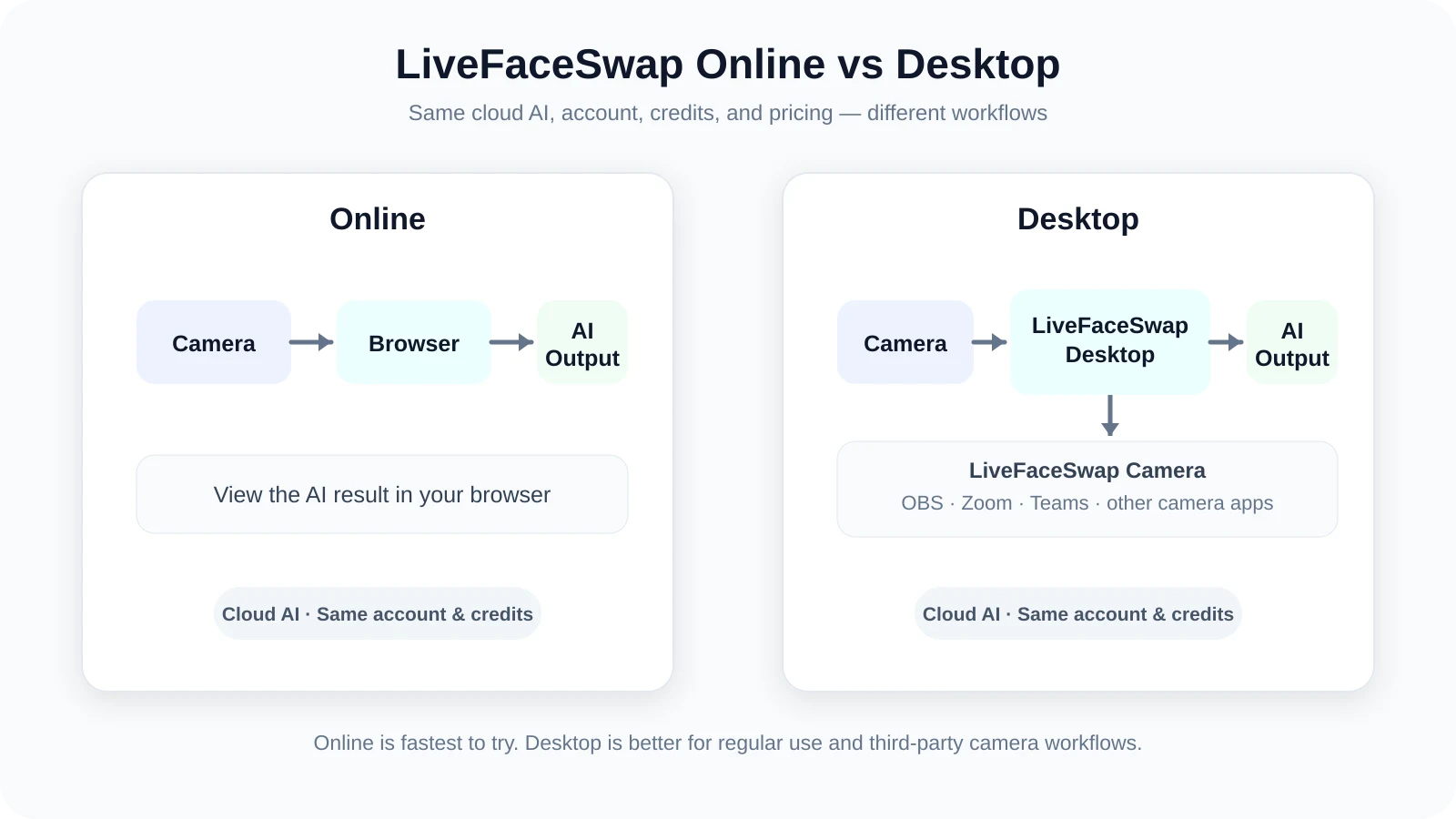
LiveFaceSwap offers two ways to use real-time face swapping: the Online version in your browser, and LiveFaceSwap Desktop, which runs as a dedicated desktop app.
If you just want to try real-time face swap without installing anything, the Online version is enough. If you plan to use LiveFaceSwap regularly, Desktop is usually the better fit: it gives you a dedicated app experience and is more convenient for everyday use. It also includes a virtual camera that can send the AI output to other apps.
Both versions share your LiveFaceSwap account, credits, and pricing. The choice is about how you want to use the product, not about paying more for Desktop.
What is the biggest difference between Online and Desktop?
The Online version is the fastest way to get started. Open the page, allow camera access, choose a reference image, and start a real-time face-swap session in your browser.
Desktop supports the same real-time camera input and AI output, but runs as a dedicated application. That makes it a better fit for regular desktop use, even if you never use OBS.
Desktop also installs LiveFaceSwap Camera, a virtual camera that can send the processed AI video to other apps that accept camera input.
| Comparison | Online | Desktop |
|---|---|---|
| Installation required | No | Yes |
| Environment | Browser | Windows 10/11 Apple Silicon Mac (macOS 13+) |
| Real-time camera preview | Yes | Yes |
| Real-time AI face swap | Yes | Yes |
| Account and credits | Same | Same |
| Pricing / billing | Same | Same |
| High-end local GPU required | No | No |
| Experience | Runs directly in the browser | Runs in a dedicated desktop app and may feel smoother |
| LiveFaceSwap Camera | No | Yes |
| OBS / Zoom / Teams integration | Browser output is not available as a system camera | Supported |
| Best for | Quick testing, occasional use | Regular use, desktop workflows, third-party apps |
When is the Online version enough?
Online is usually the best place to start if you simply want to see how real-time face swap works with your camera.
It makes sense when you:
- are trying LiveFaceSwap for the first time or only use it occasionally to test reference images and AI models;
- do not want to install software;
- use a computer that does not meet the Desktop requirements or does not allow you to install apps;
- only need to view the real-time AI result inside LiveFaceSwap itself.
If you only need the processed video inside the browser, you may not need to install Desktop.
For the actual steps, see How to Use Live Face Swap Online.
Why is Desktop better for regular use?
Desktop is useful for more than OBS integration.
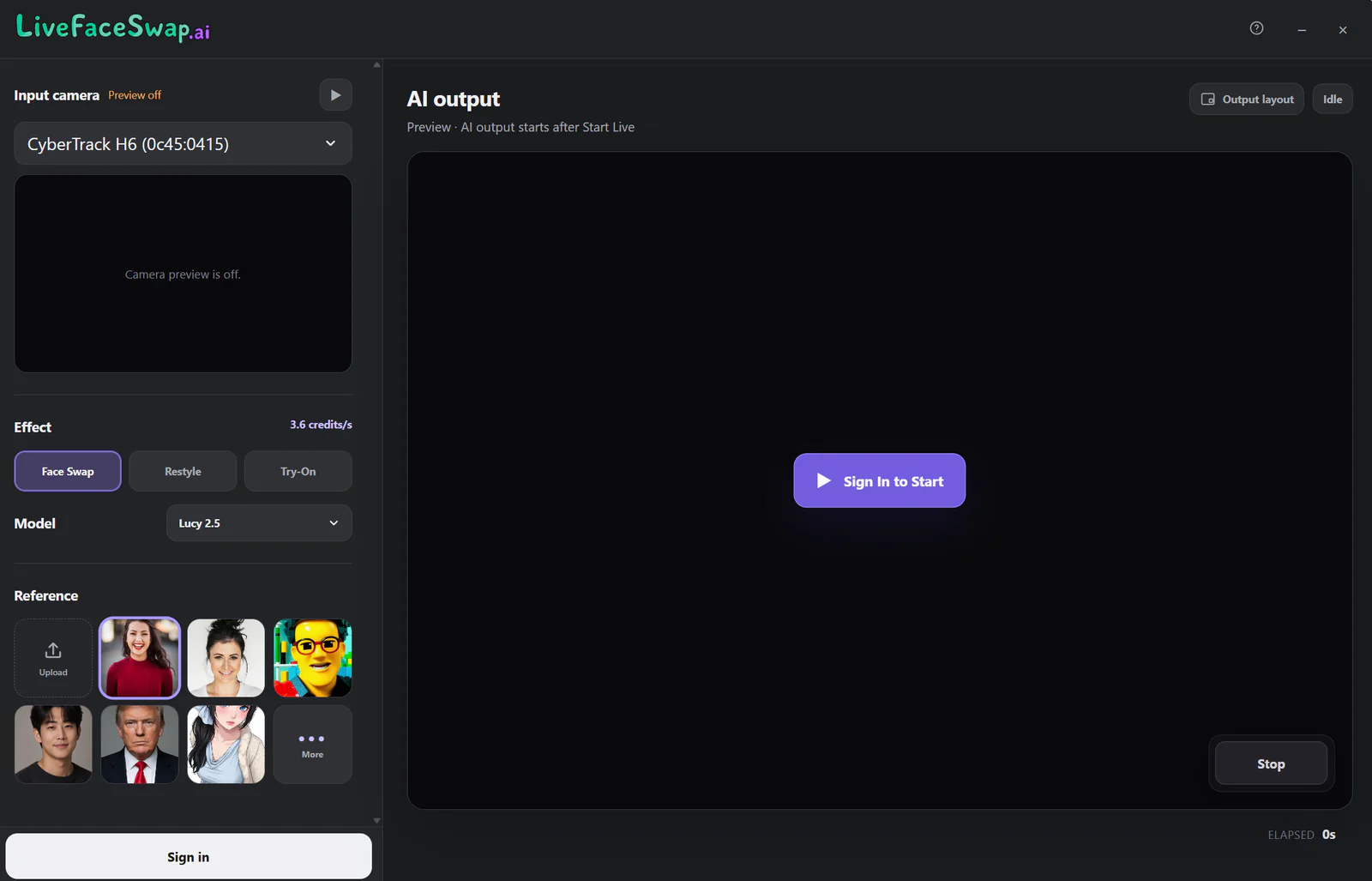
If you use LiveFaceSwap often, a dedicated app is easier to incorporate into your usual desktop workflow. Your camera, reference image, model selection, and AI output stay in one application window instead of a browser tab.
It can also be more convenient if you frequently start and stop sessions or switch between desktop applications. Even without OBS, Zoom, or a virtual camera, Desktop is usually the better choice for day-to-day use.
When do you need Desktop’s virtual camera?
If another application needs to use the face-swapped video directly, Desktop adds something the Online version does not: LiveFaceSwap Camera.
Common examples include:
- streaming or recording in OBS;
- video calls in Zoom, Microsoft Teams, or Discord;
- streaming with Streamlabs or TikTok LIVE Studio;
- any other desktop app that accepts a camera source.
The AI video shown in the Online version does not automatically appear as a system camera. Desktop can route its own AI output through LiveFaceSwap Camera, which other applications can select just like a standard webcam.
For virtual-camera setup, see LiveFaceSwap Camera and Virtual Camera Guide. If you use OBS, see the OBS Live Face Swap Guide.
Does Desktop produce higher-quality face swaps than Online?
Desktop can feel smoother, but that does not mean it uses a higher-quality face swap model.
Because Desktop runs as a dedicated application, it may deliver a higher frame rate or smoother preview on some computers. How much difference you see depends on your computer, camera, and network conditions.
The main AI inference for both versions is still handled in the cloud, so image quality itself depends more on the selected AI model, reference image quality, camera quality, lighting, and face angle.
Do Online and Desktop need a local GPU?
Neither version requires a high-end dedicated GPU.
LiveFaceSwap performs the main AI inference in the cloud, so you do not need to install a large local model or configure a high-end GPU for either version.
Desktop is still a desktop client, but that does not make face swapping fully offline or local.
For more detail, see Does Real-Time Face Swap Need a GPU?.
Is there a privacy difference?
There is no major difference in this respect: both versions rely on cloud AI rather than a fully offline workflow.
For details about data processing, storage, and deletion, see the Privacy Policy.
Which one should you choose?
- Want to try it quickly without installing anything? Choose Online.
- Plan to use LiveFaceSwap regularly? Desktop is usually the better choice, even if you never use OBS.
- Need OBS, Zoom, Teams, Discord, or another app to use the face-swapped video? Choose Desktop and use
LiveFaceSwap Camera.
If you are still unsure, start with Online. Once you have confirmed that the results meet your needs, install Desktop if you want a smoother desktop experience or third-party camera integration.