
A real-time face swap can look convincing while you hold still, then suddenly look wrong when you turn your head or start talking. The cause is rarely just one setting. The reference image, what the webcam can see, lighting, movement, and the stability of the generated video all matter. A good live result has to look plausible in each frame and remain consistent as those frames play together.
What does “unnatural” actually look like?
Different problems can produce the same impression that something looks off:
- The facial features resemble the reference person, but the overall identity does not quite match.
- A front view looks good, while the eyes, mouth, or face shape distort as the head turns.
- The lips, teeth, or jaw look odd during speech.
- The face edge, skin tone, or lighting seems disconnected from the rest of the camera image.
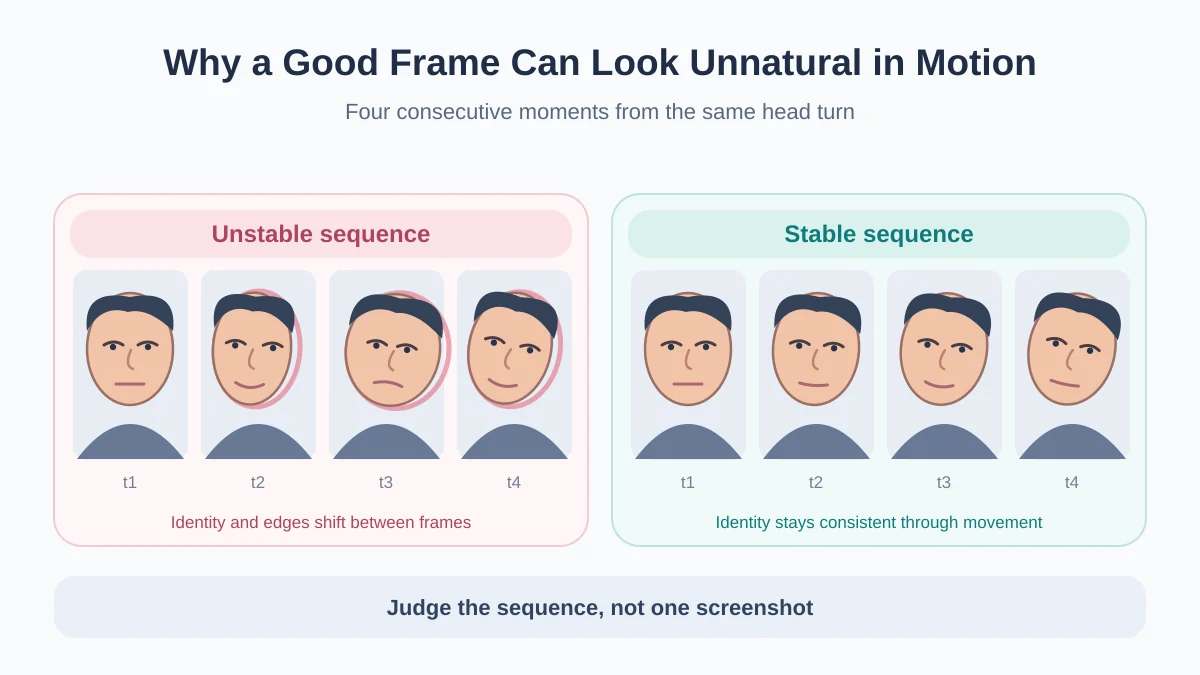
- A paused frame looks fine, but the face flickers, drifts, or subtly changes during playback.
The first useful distinction is whether the problem is identity, shape, blending, or stability over time. Each points to a different part of the live process.
A good frame is not enough for natural live video
A photo face swap only needs to produce one finished image. A live system keeps receiving new camera frames and producing new output as you blink, speak, smile, and turn.
Each generated frame has to look plausible and fit smoothly with the frames around it. Slight changes in identity, jawline, eye position, or the edge of the generated region may be easy to miss in a screenshot. Played back as video, they can look like flicker or a face that will not stay in place.
This frame-to-frame stability is called temporal consistency. It is one reason judging a live face swap from a single still image can be misleading.
For the full path from camera input and reference image to live output, see How Does Real-Time Face Swap Work?.
Reference quality, head angle, and expression all affect the result
The reference image gives the system information about who should appear. The camera feed shows what the person is doing right now. Both need to provide enough usable detail.
A clear reference photo with a full, unobstructed face gives the model more to work with than one where the face is small, blurry, covered, or seen only in profile. During the live session, a front-facing camera view shows both eyes and much of the face. As you turn toward a full profile, some features disappear from view and the outline changes. The system has less visible information to work with, so the eyes, mouth, or face shape may become less reliable.
Speech and large expressions add fast changes to the lips, jaw, cheeks, eyes, and brows. Teeth may appear for one moment and disappear the next. The output has to follow those changes while keeping the reference identity recognizable. Looking natural while still does not guarantee the same result while talking.
Occlusion, lighting, and webcam quality can make the result less stable
A hand crossing the face, hair over an eye, glare on glasses, or motion blur during a quick turn can hide useful details in the current camera frame. When that happens, the generated face may briefly shift, deform, or lose a clean edge.
Lighting affects whether the new face seems to belong in the scene. Even if its identity and motion are close, a soft, front-lit reference can look out of place against a dark webcam image with strong side light. Differences in shadows, brightness, or skin tone can make the face appear pasted on.
The webcam's advertised resolution is not the resolution of the face within the frame. If you sit far from a 1080p camera, your face may occupy only a small area. Low-light noise, autofocus changes, and video compression can reduce the useful detail further.
Why can't a higher-quality model solve every problem?
Live video has a time limit: new camera frames keep arriving, and the processed result needs to follow your movements closely. A real-time system has to balance facial detail and identity similarity, stability between frames, smooth motion, and the delay between an action and its appearance on screen.
More processing may improve some visual details, but it can also make the result fall behind. Optimizing only for speed may sacrifice detail or consistency. A highly detailed face that is always a beat late can feel less natural than a slightly softer one that follows your movements smoothly.
Delay can also come from capture, encoding, network transport, decoding, and playback, not only from the model.
How can you identify the cause and improve the result?
Start with when the problem appears. The patterns below are clues, not certain diagnoses.
| What you see | Possible factors | What to try first |
|---|---|---|
| The result never looks much like the reference person | Reference quality, identity information, model capability | Try a clear reference with the full face visible, then compare the result. |
| The front view looks fine, but the face distorts when you turn | Head angle, occlusion, less visible facial detail | Turn more slowly and note which angle starts to cause trouble. |
| The mouth, teeth, or jaw look wrong during speech | Expression changes, mouth motion, temporal consistency | Speak at a normal pace under steady light and see whether the problem persists. |
| The face edge or skin tone looks pasted on | Lighting, color matching, blending | Reduce harsh side light and check the edge and skin tone under softer, more even lighting from the front. |
| The face looks fine while still but flickers or drifts in motion | Temporal consistency, fast movement, unstable input | Keep the face clearly visible, reduce occlusion and sudden movement, then watch the video continuously. |
| The video keeps playing, but your movements appear late on screen | Latency, frame rate, network, or video processing | Check network stability and whether the video also stutters or drops frames. |
Change one condition at a time, starting with the most obvious symptom. If the reference, camera conditions, and network are stable but the problem remains, compare the results from different available models. That helps separate input limitations from differences in how a model handles a particular angle or expression.
Finally, test a short sequence rather than picking the best screenshot. Keep the reference and camera conditions the same, turn your head, speak a few words, and watch whether the output stays stable. That shows whether the change actually helped.