
You open a video call, streaming app, or real-time face swap tool, only to see a warning that your camera is already in use. Which app has it open?
To find which app may be using your camera on Windows 11 or 10, start with browser tabs showing a webcam preview and meeting or streaming apps that might still be running. If the culprit isn't obvious, download the Windows checker below to review camera-access records and matching processes. We'll also cover what to do when the checker finds nothing.
First, check apps that might still have your camera open
A webcam preview can keep using your camera even when you're not recording or running an AI face swap. Common places to look include:
- Browser tabs: Webcam tests, video meetings, or face-swap websites may keep using your camera after you switch tabs.
- Meeting and streaming apps: Zoom, Teams, OBS, or other camera and virtual-camera tools.
- Background apps: Some programs continue running in the system tray after you close their windows.
Multiple apps can sometimes share a camera, depending on the device, driver, and software. But when there's a conflict, closing previews you no longer need is the simplest first test.
How to Find Which App Is Using Your Camera on Windows
The downloadable BAT script reads camera-access records for the current Windows user and looks for matching running processes. It can point you toward apps worth investigating.
Download Find-Camera-Users.bat- Save the BAT file to your Windows PC.
- While the error is occurring, double-click the file. It uses Windows' built-in PowerShell to read camera-access records without changing system settings or the registry. No separate installation is needed.
- Review the results and app names. Press a key when you're ready to close the window.
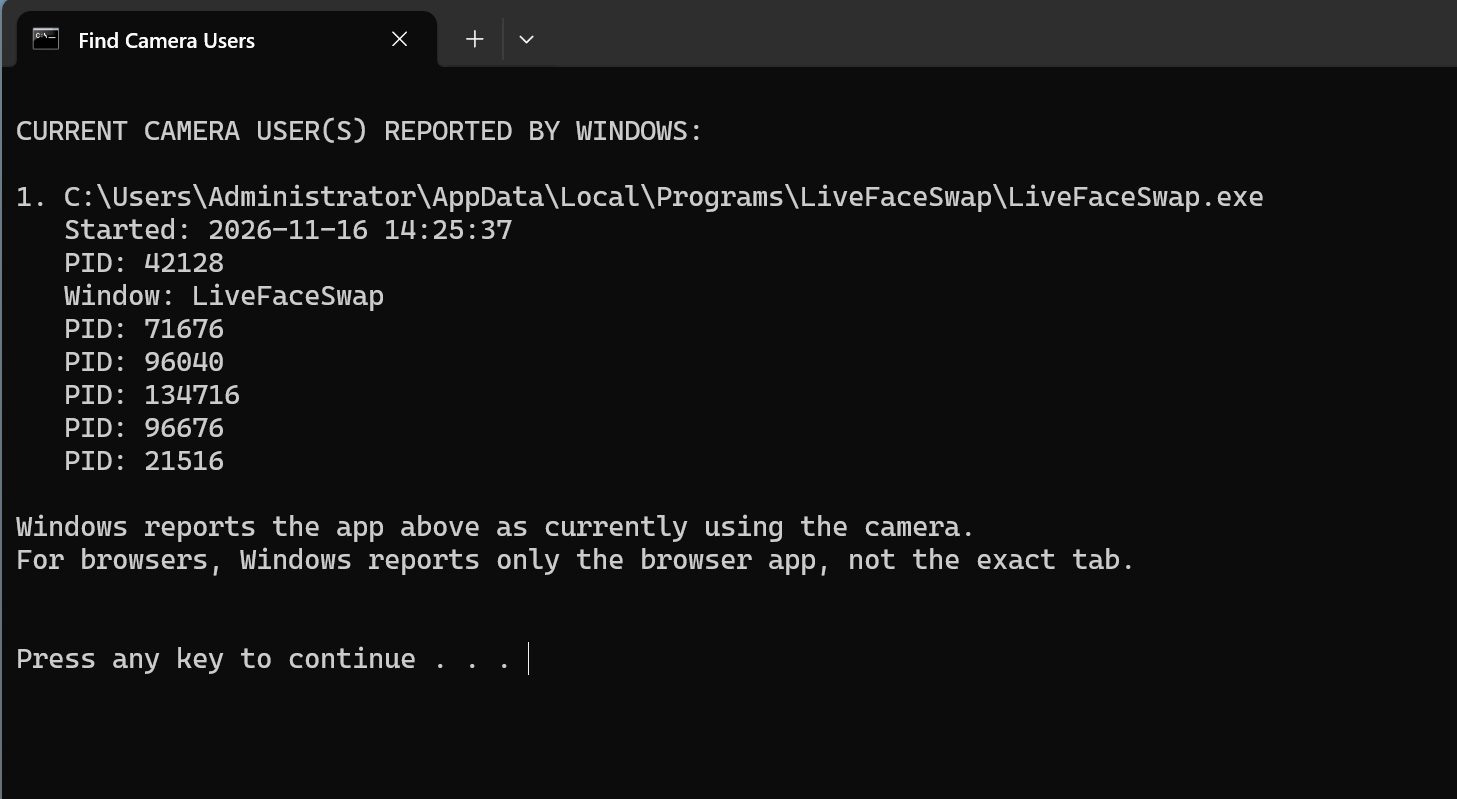
How to read the results
| Result | What to do |
|---|---|
An app appears under CURRENT CAMERA USER(S) REPORTED BY WINDOWS | Check whether it has an active camera preview or call. |
| Chrome, Edge, or another browser is listed | Inspect browser tabs to find a page that may be accessing the camera. |
| Multiple PIDs appear for one app | Use the program path and window name to identify it. Not every matching process necessarily uses the camera. |
NO CURRENT CAMERA USER REPORTED BY WINDOWS | The checker didn't identify a current user from the records. Last-access entries are historical, not proof of ongoing use. |
| No records or incomplete information | Continue with camera permissions, input selection, and device checks below. |
Started is the recorded access start time; Window identifies a program window; PID means process ID, not camera ID.
The checker uses Windows camera-access records as clues. It can't reliably identify which process is currently using the camera, and it doesn't close apps for you.
If it lists a browser, find the tab
The checker can identify Chrome or Edge without naming the exact tab. Look for a camera or recording indicator and open the relevant page to confirm what's running.

Stop the camera preview or leave the call; close the tab if you no longer need it. Minimizing the browser doesn't necessarily release the camera.
How to release the camera and try again
Closing the app that's using your webcam will usually release it. First stop any active call, recording, or camera preview. If you don't need the app, quit it completely. Some apps keep running in the system tray after you close their windows, so use the tray menu's Exit or Quit option when necessary.
Go back to the app that showed the error and try opening its camera preview again. If it still reports a conflict, fully quit and restart that app, then retry.
If restarting the app doesn't help, save your work and restart Windows. This can clear camera sessions or background processes that didn't close properly. After restarting, test the webcam in your intended app before opening other video software.
Why does my camera say it's in use when no apps are open?
Not seeing another app's window doesn't mean the app has stopped using the webcam. A browser tab may still have a video call or camera preview running, while Zoom, Teams, or another program may be active in the system tray after its window closes.
Sometimes an app has closed but its previous camera session hasn't shut down cleanly. Use the release-and-retry steps above rather than repeatedly searching for an open window.
If nothing else is using the camera but the error persists, the message may point to a different problem. Camera permissions, the selected input device, or drivers can prevent access too. Use the checks below instead of repeatedly looking for an app that may not exist.
Can't find an app using the camera? Try these checks
What do camera errors 0xA00F4243 and 0xA00F4289 mean?
Microsoft lists both codes among camera errors that may involve another app or process using the camera. Restricted camera access can also cause an app to fail, so the code alone doesn't identify an owner. First check for competing apps, then review camera permissions and device selection. See Microsoft's Windows camera error guidance.
1. Check Windows and browser permissions
On Windows 11, go to Settings → Privacy & security → Camera. On Windows 10, use Settings → Privacy → Camera.
Make sure camera access is enabled, including permission for desktop apps. This page may also show recent camera activity, but a recent entry doesn't mean an app is still using the webcam. Some desktop apps may not appear in the list.
For a website, check its browser permission as well. In Chrome, go to Settings → Privacy and security → Site settings → Camera. Windows camera access and website permissions are separate checks; see Google's camera troubleshooting guide.
2. Can multiple apps use the same camera on Windows 11?
Some Windows 11 PCs offer multi-app camera mode. On Windows 11 version 24H2 or later, open Settings → Bluetooth & devices → Cameras, select your webcam, then choose Edit under Advanced camera options. If available, look for Allow multiple apps to use camera at the same time.
This setting can let multiple apps share the camera stream, but it isn't available on every system and may be managed by your organization. It can also affect available video settings, and it isn't a universal fix for camera conflicts. For a one-off error, closing unused previews is usually simpler. See Microsoft's Windows 11 camera settings guide.
3. Test your physical webcam with Windows Camera
Close other apps that might be using your webcam. Then open the built-in Windows Camera app on its own.
If Camera displays live video, the device is accessible to that app. Focus next on the failing program's selected device and permissions, including whether it has selected a virtual camera instead of your physical webcam.
Close Windows Camera after testing, before retrying the original app. Otherwise, the test itself may create another conflict.
If Camera also fails, investigate the webcam connection, device detection, or drivers.
4. Check the device and drivers
If restarting the app or Windows hasn't helped, reconnect a USB webcam, try a different port, and check Device Manager to see whether Windows detects it. For problems that began after an update, or failures across multiple apps, consult Microsoft's Windows camera troubleshooting guide.
A blank checker result isn't a reason to delete camera-access records or edit the registry.
Fix the camera-in-use warning in LiveFaceSwap AI
If you see this warning in LiveFaceSwap Desktop, use the same process to check for conflicting apps:
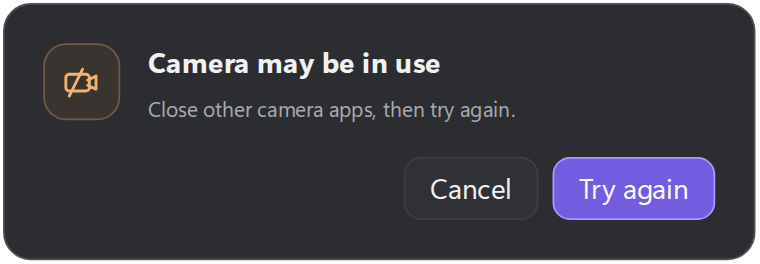
Close unused browser previews, calls, and camera utilities. If the source is unclear, run the checker for clues. Return to LiveFaceSwap, click Try again, and make sure the original webcam preview works before starting AI face swapping.
If the webcam preview works but the swapped feed is missing, the issue may be with the AI session or output rather than camera access.
Still stuck? Email support@livefaceswap.ai with an error screenshot, your Windows version, webcam model, and whether Windows Camera worked.