
LiveFaceSwap AI lets you compare your camera input with live AI face-swap output in the browser. For a useful first test, keep the reference, model, framing, and lighting steady, then check the result before changing one setting at a time.
Open the Browser Workspace to follow along. Opening the camera preview alone does not start an AI session or AI billing.
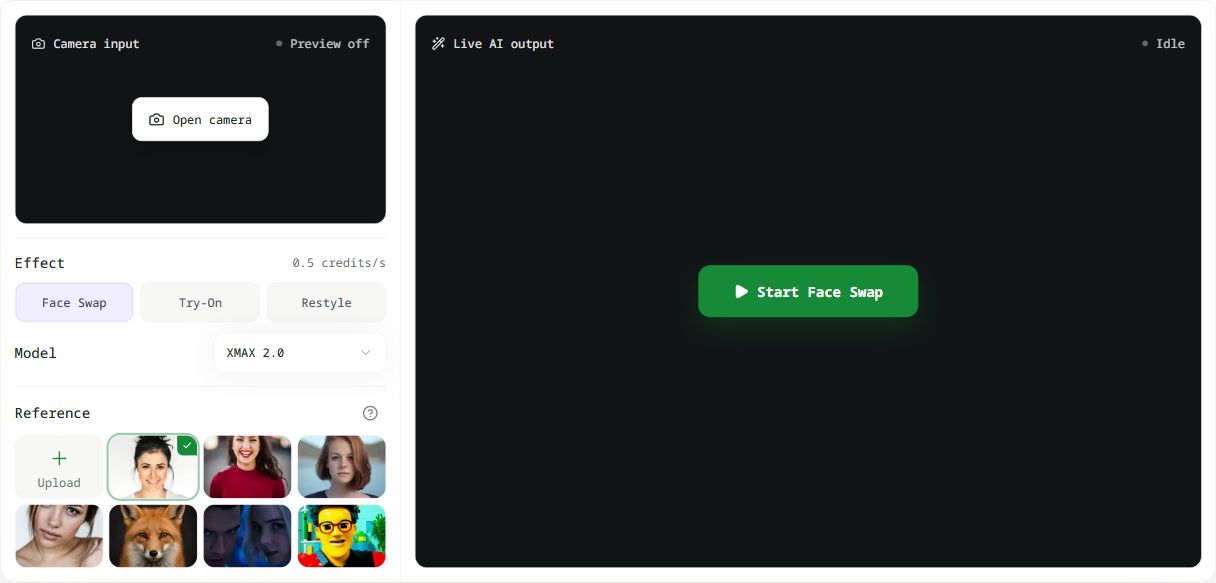
The current browser workspace keeps the camera input, AI output, selected effect and model, credit rate, reference, and session control in one view.
Read the Workspace Before You Spend Credits
Start in Face Swap mode. Before starting, check the selected Reference, Model, current credit rate, available credits, and camera state. The reference is the likeness you authorize for the test, the model determines the displayed rate, and the camera state confirms whether the source view is ready.
Rates and available time vary by model, so use the current values in the workspace.
Start Your First Browser Face-Swap Test
1. Choose a reference. Keep Face Swap selected, then choose a preset or upload a clear portrait that you are authorized to use.
2. Check your camera. Select Open camera and allow browser access. Confirm that the source preview shows the intended camera and a clear, unobstructed view.
3. Start the AI session. Sign in, confirm the displayed credit rate for the selected model, then select Start Face Swap.
If the camera does not open, check the site's camera permission and close any other app using that device before retrying.
Keep the First Test Easy to Compare
Keep the reference, model, camera framing, and lighting unchanged. Make a few small head turns and ordinary expressions, then compare the source camera input, live AI output, and workspace status.
After checking the result, select Stop preview. The transformed frames can still vary with the reference, camera quality, framing, motion, network conditions, and selected model. Realtime means the preview updates continuously; it does not mean zero delay or identical results in every frame.
Read the Status Instead of Guessing
Use the workspace labels to understand the session and decide what to do next:
- Camera ready means the local source preview is available. It is still separate from a billable AI session.
- Starting means LiveFaceSwap AI is preparing the session after you chose to start.
- Live means the workspace has live AI output to inspect.
- Stopping means the preview is being closed; wait rather than starting another session immediately.
- Updating credits means the stopped session is reconciling its final usage and balance.
- Needs attention means the workspace needs a recovery step, such as checking camera access or the connection, before another comparison.
Choose Browser Preview or Desktop
Use the browser when you want to evaluate a reference, source camera, model choice, and visible AI output in one short interactive test. It is the right place to decide whether to continue—not a recording or production-output tool.
If your next task is an OBS or virtual-camera workflow, move to the LiveFaceSwap Desktop setup guide. It covers how to install, configure, and privately test that separate route.
LiveFaceSwap AI Browser FAQ
When does credit billing start?
Billing starts after the first confirmed AI frame. Opening the camera preview alone is not a billed AI session.
What if I can see my camera but no AI output?
The camera preview only confirms the local input. Check the workspace status, selected reference and model, and network connection. If the AI output does not appear, stop the session, address the indicated issue, and retry.
Can I record, download, export, or save the transformed browser video?
No. The current browser preview does not record, download, export, or save transformed video.
Use Authorized References and Disclose AI
Use only your own likeness or a reference image you are authorized to use. Do not use a realistic face swap to impersonate, deceive, defraud, harass, or violate someone else's rights; disclose synthetic media where the context could otherwise mislead people. Before enabling the camera or uploading a reference, review the Privacy Policy for the current data-processing and retention terms.